ControllerKeys

Use your game controller as a keyboard and mouse for your Mac — browse, scroll, click, and type from the couch

Download Now — $49.99 $24.99
50% off launch price — limited time
Open source & trusted
GitHub stars Last commit · Apple notarized
Scroll to explore

Full Demo

Watch a walkthrough of ControllerKeys features in action

Quick Setup

Get up and running in under a minute

💻

macOS 14.0+

Sonoma or later

🎮

Any Controller

Xbox, PS5, PS4, or 300+ others

🔐

Accessibility

Permission required

1

Download

Get the app from Gumroad

2

Install

Open the DMG and drag to /Applications

3

Authorize

Grant Accessibility permissions when prompted

4

Connect

Pair your controller via Bluetooth or USB

Why Accessibility permissions? The app uses Apple's CGEvent API to simulate keyboard and mouse input. This is the same API used by accessibility tools and automation software. The app is fully open source so you can verify it doesn't do anything nefarious.

Features

Everything you need for controller-driven productivity

⌨️ Button Mapping

Type Description
Simple Key Single keystroke per press
Modifier + Key Like C
Hold Modifier Hold button = hold modifier
Long Hold Different action on long press
Double Tap Quick double press trigger
Repeat Auto-repeat while holding

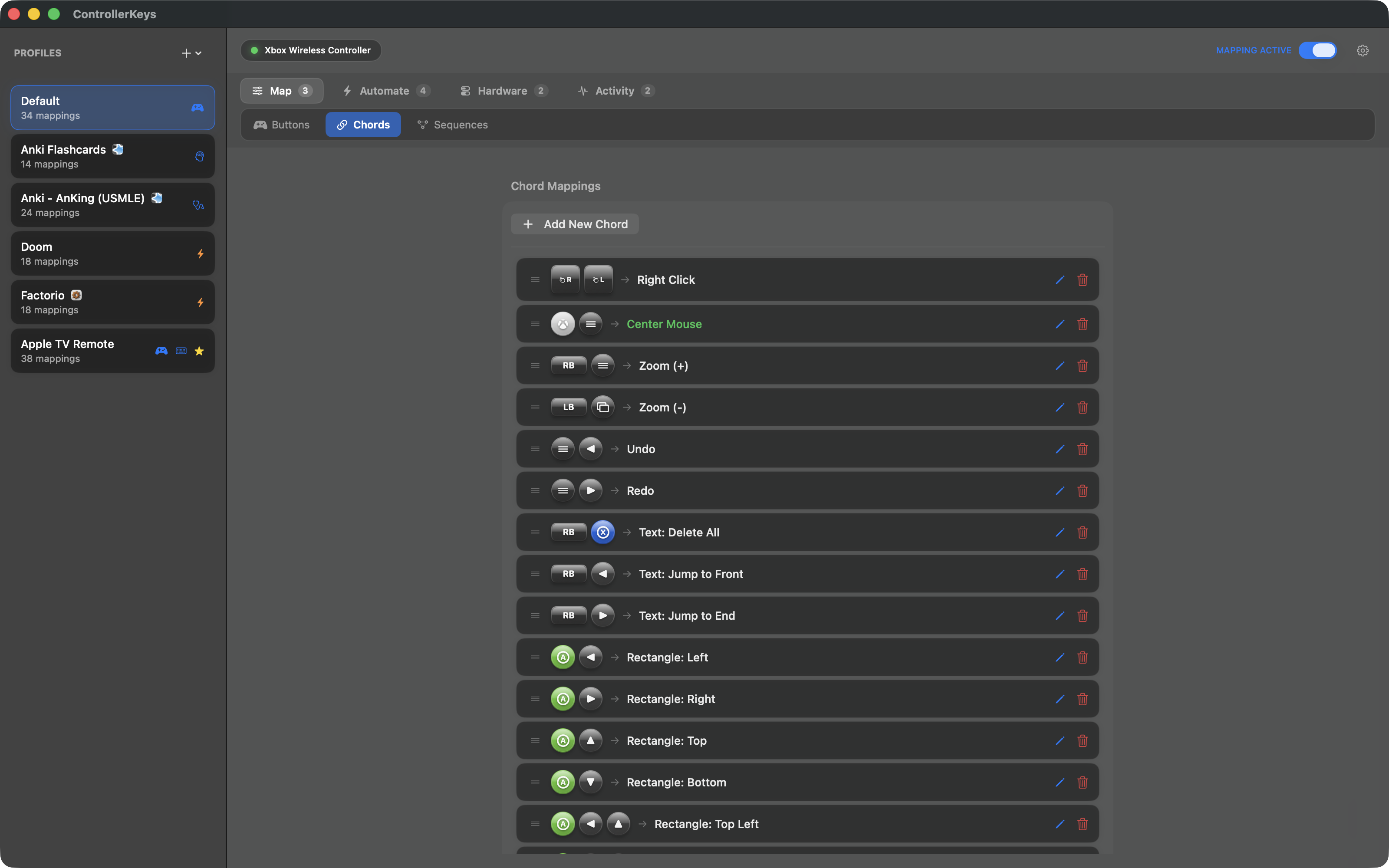
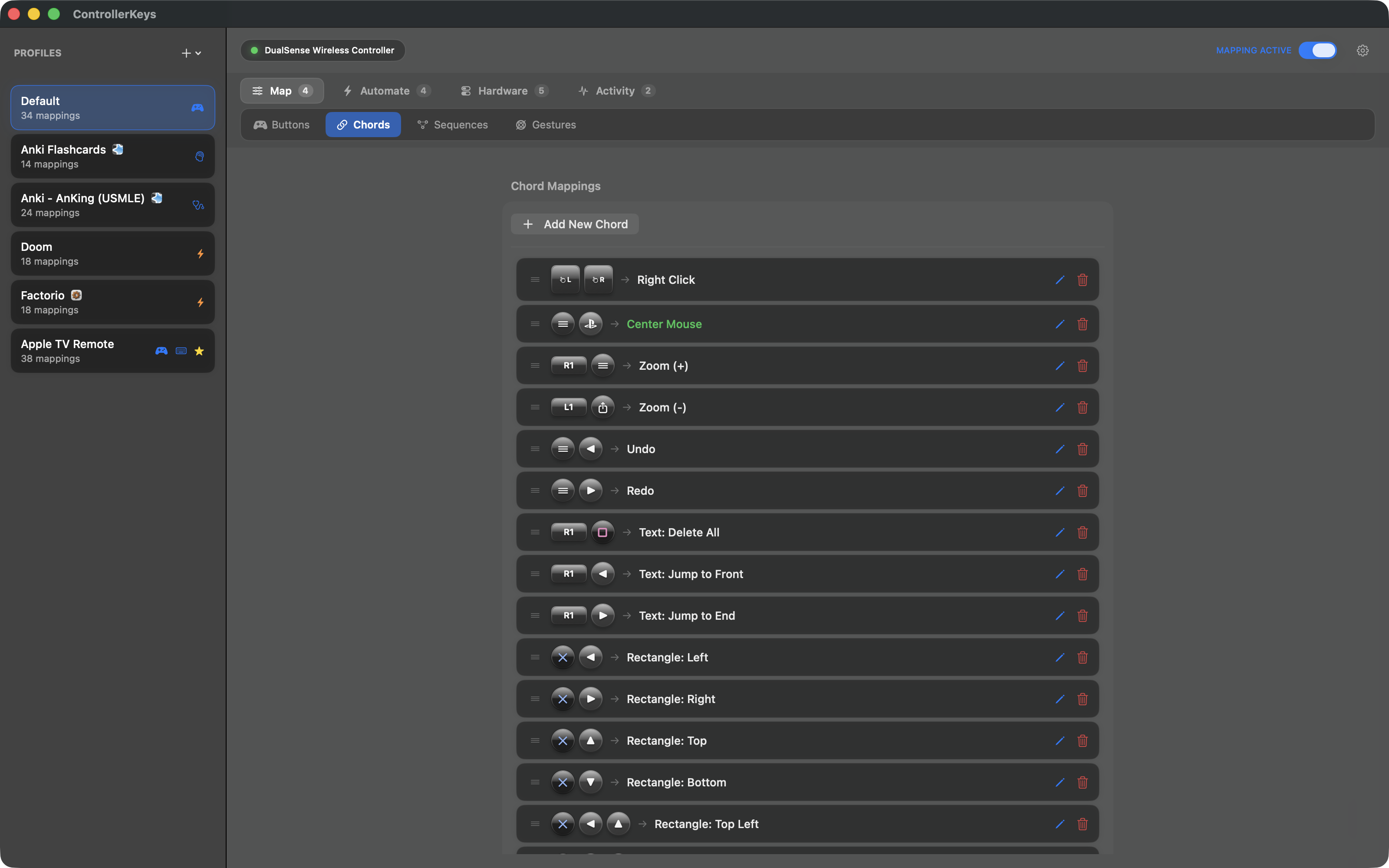
🔗 Chord Mappings

Press multiple buttons for one action. Fully customizable — create your own combinations.

RB + X
Delete word
LB + Y
Z Undo
RB + A
C Copy
X + A + B
Run macro

🔢 Button Sequences

Trigger actions with ordered button combos — like cheat codes

Up Up Down Down
Run script
  • Zero-latency detection
  • Configurable step timeout
  • Assign to keys, macros, scripts, or system commands

📚 Layers

Hold a button to unlock an entirely different set of mappings — like Shift on a keyboard

  • Up to 2 additional mapping layers per profile
  • Hold any button to activate a layer
  • Unmapped buttons fall through to base
  • Multiply your available shortcuts

Example: Hold LB to turn A/B/X/Y into app launchers, D-pad into media controls.

📜 JavaScript Scripting

Write custom automation scripts powered by JavaScriptCore

  • press(), hold(), click(), type(), paste(), delay()
  • shell(), openURL(), openApp(), notify(), haptic()
  • App-aware: app.name, app.bundleId, app.is()
  • Trigger context: trigger.button, trigger.pressType
  • screenshotWindow() API for window capture
  • Per-script persistent state across invocations
  • Built-in example gallery with ready-to-use scripts
  • Script editor with syntax reference and AI prompt assistant

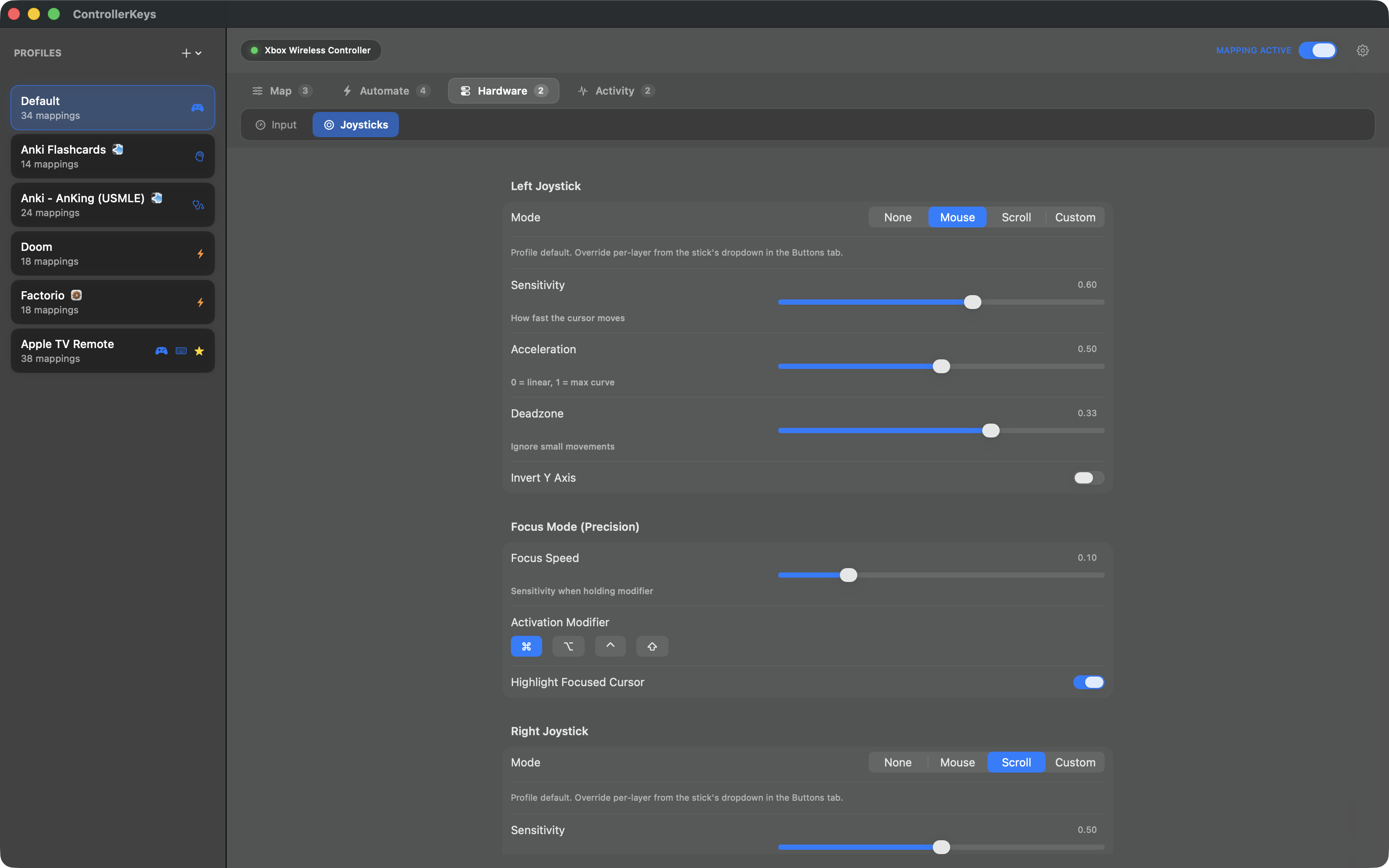
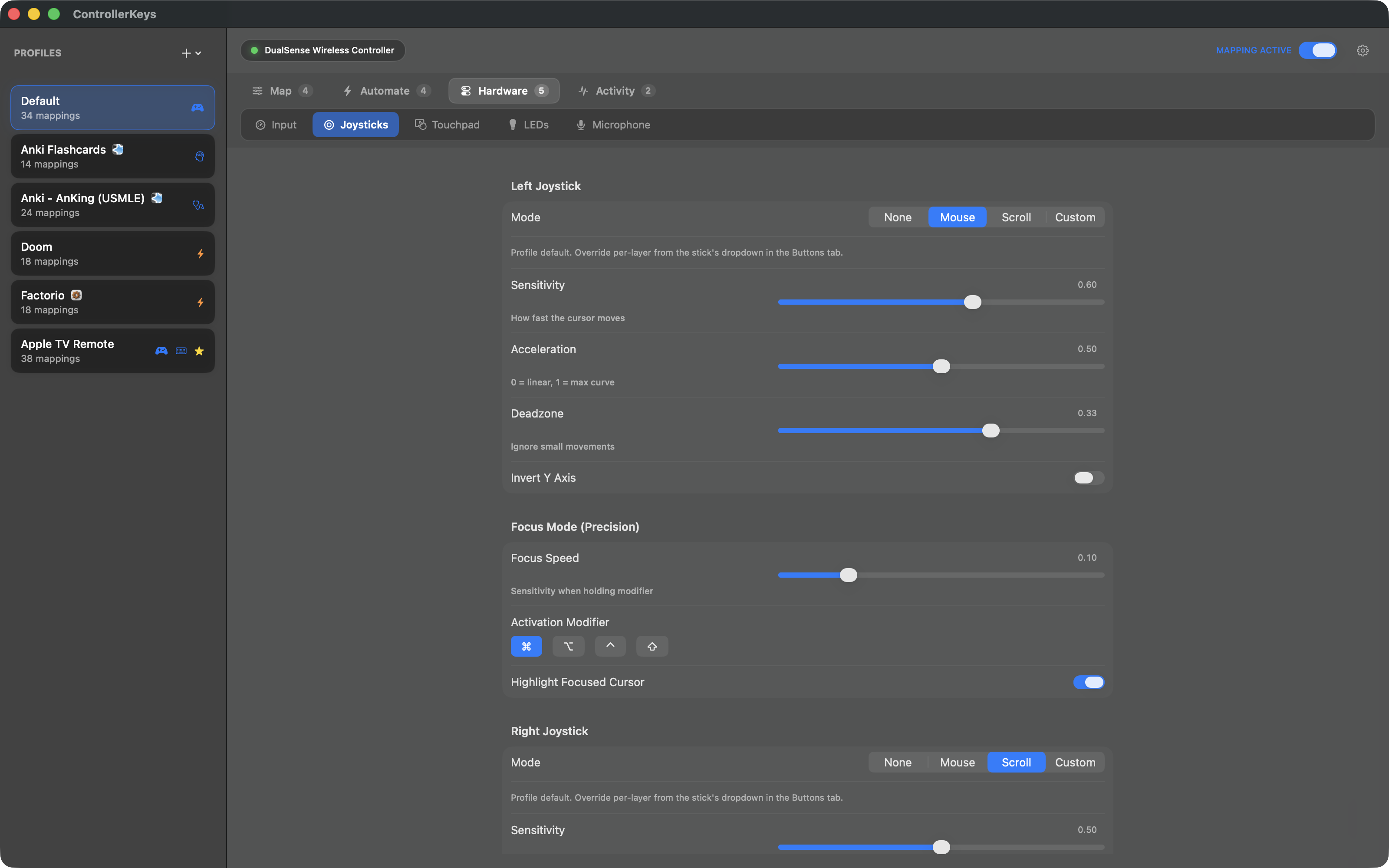
🕹️ Joystick Control

Left Stick

Mouse or WASD

Right Stick

Scroll or Arrows

  • Mouse, WASD, Arrow, or disabled per stick
  • Adjustable sensitivity & deadzone
  • Focus mode for precision with cursor highlight
  • Acceleration curves and invert Y-axis

🎯 Command Wheel

GTA-inspired radial menu for instant app and website switching

  • Hold button to show, use right stick to select
  • Haptic feedback as you navigate
  • Push stick all the way to force quit or open new window
  • Hold modifier for alternate content (apps vs websites)
  • Long-hold on websites for incognito mode

🎯 Gyro Aiming & Gestures

Use the DualSense or DualShock 4 gyroscope for precise mouse control and gesture-triggered actions

  • Gyro aiming in focus mode for precision mouse control
  • 1-Euro filter for jitter-free, responsive tracking
  • Tilt forward/back and steer left/right gesture mappings
  • Per-profile sensitivity and cooldown sliders
  • Configurable deadzone and cubic sensitivity curve

🌐 HTTP Webhooks

Send HTTP requests from controller buttons — trigger smart home, APIs, or custom integrations

  • GET, POST, PUT, DELETE, and PATCH methods
  • Configurable headers and request body
  • Visual feedback showing response status above cursor
  • Haptic feedback on success or failure

👤 Profiles

Multiple configurations with smart switching

  • Unlimited profiles with custom icons
  • Auto-switch profiles based on active app
  • Import community profiles from GitHub
  • Import Stream Deck V2 profiles
  • Quick switch from menu bar
  • Export & share your configs

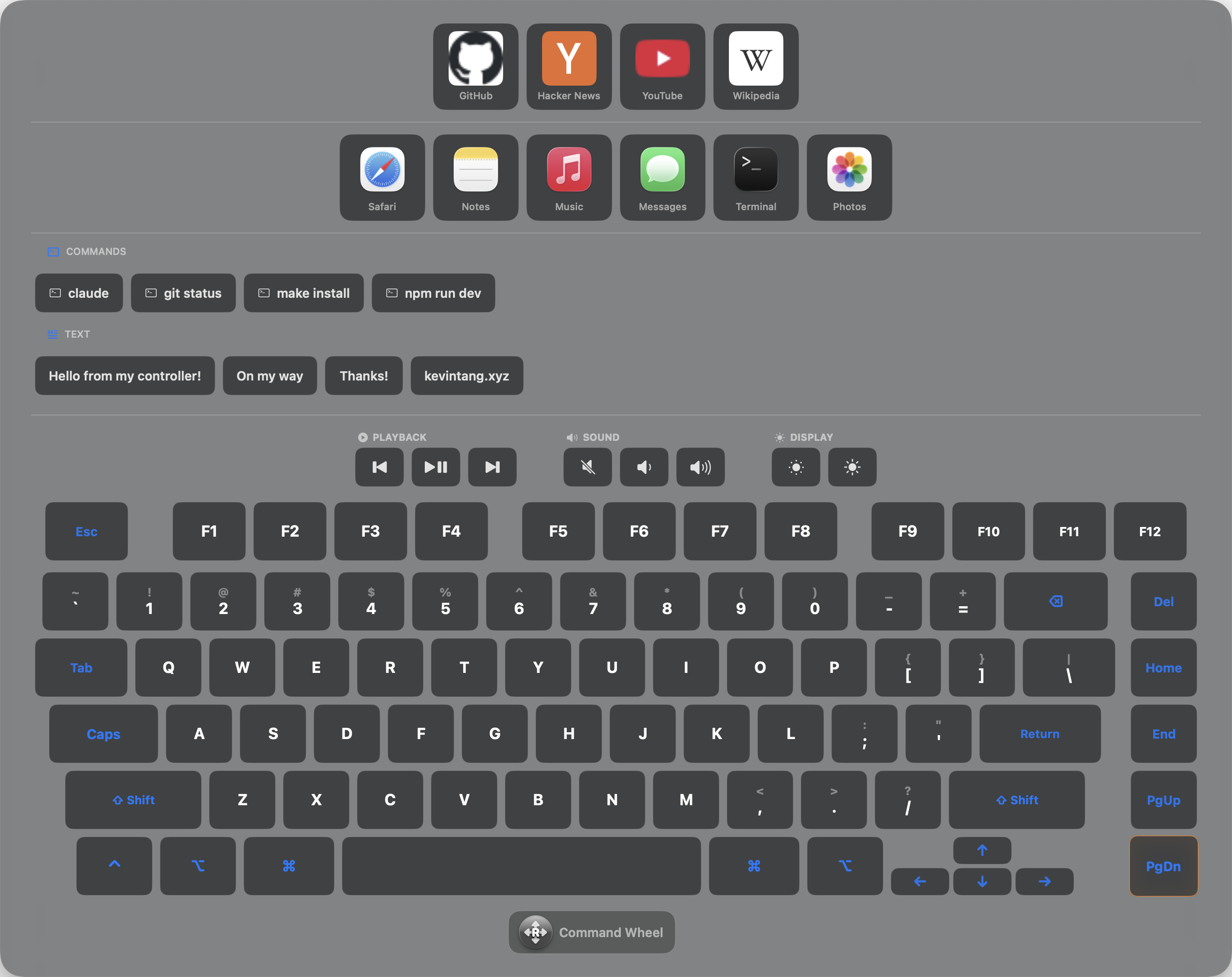
⌨️ On-Screen Keyboard

A full keyboard and app launcher with swipe typing

  • Swipe typing — slide across letters to type words
  • Navigate with D-pad or joystick
  • App bar for quick app switching
  • Website links with favicons
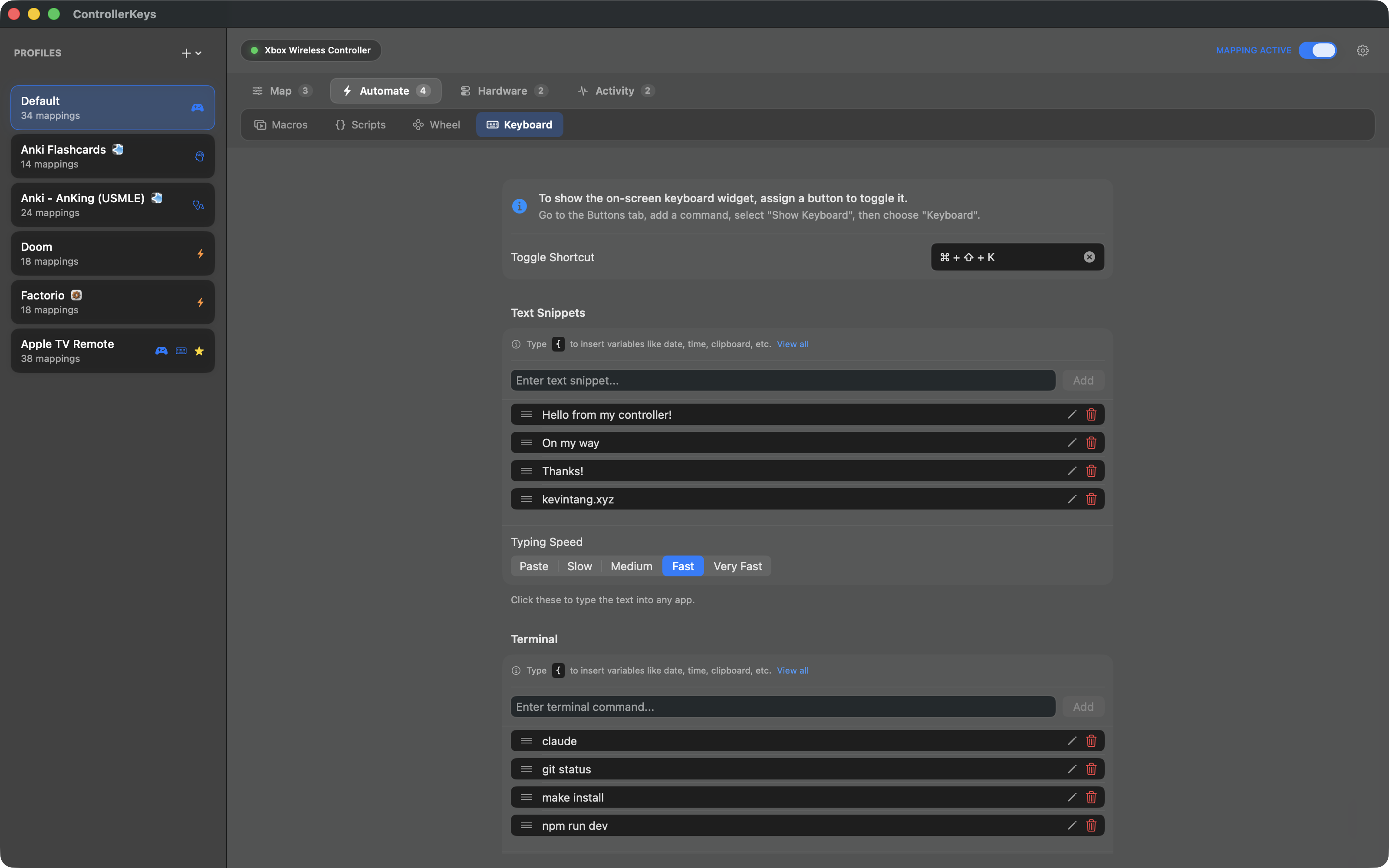
  • Saved text snippets and terminal commands
  • Media keys for playback and volume
  • Auto-scaling to fit smaller displays

🔄 Macros

Record multi-step sequences and play them back with one button

  • Key Press, Type Text, Delay, and Paste steps
  • Shell Command, Webhook, and OBS steps
  • Configurable typing speed or instant paste
  • Assign to buttons, chords, long hold, or double tap

📋 System Commands

Automate beyond key presses

  • Launch any app with one button
  • Run shell commands (silent or in terminal)
  • Open URLs in your browser
  • Insert text snippets with variables

Variables: Use {date}, {time}, {clipboard}, and more in your text.

🎮 PlayStation Features

Full support for DualSense, DualSense Edge, and DualShock 4 controllers

  • Full touchpad trackpad support (PS5 and PS4)
  • Multi-touch gestures: scroll, zoom, right-click
  • Gyroscope aiming and gesture detection
  • Customizable LED colors (DualSense via USB)
  • Edge function buttons and paddles
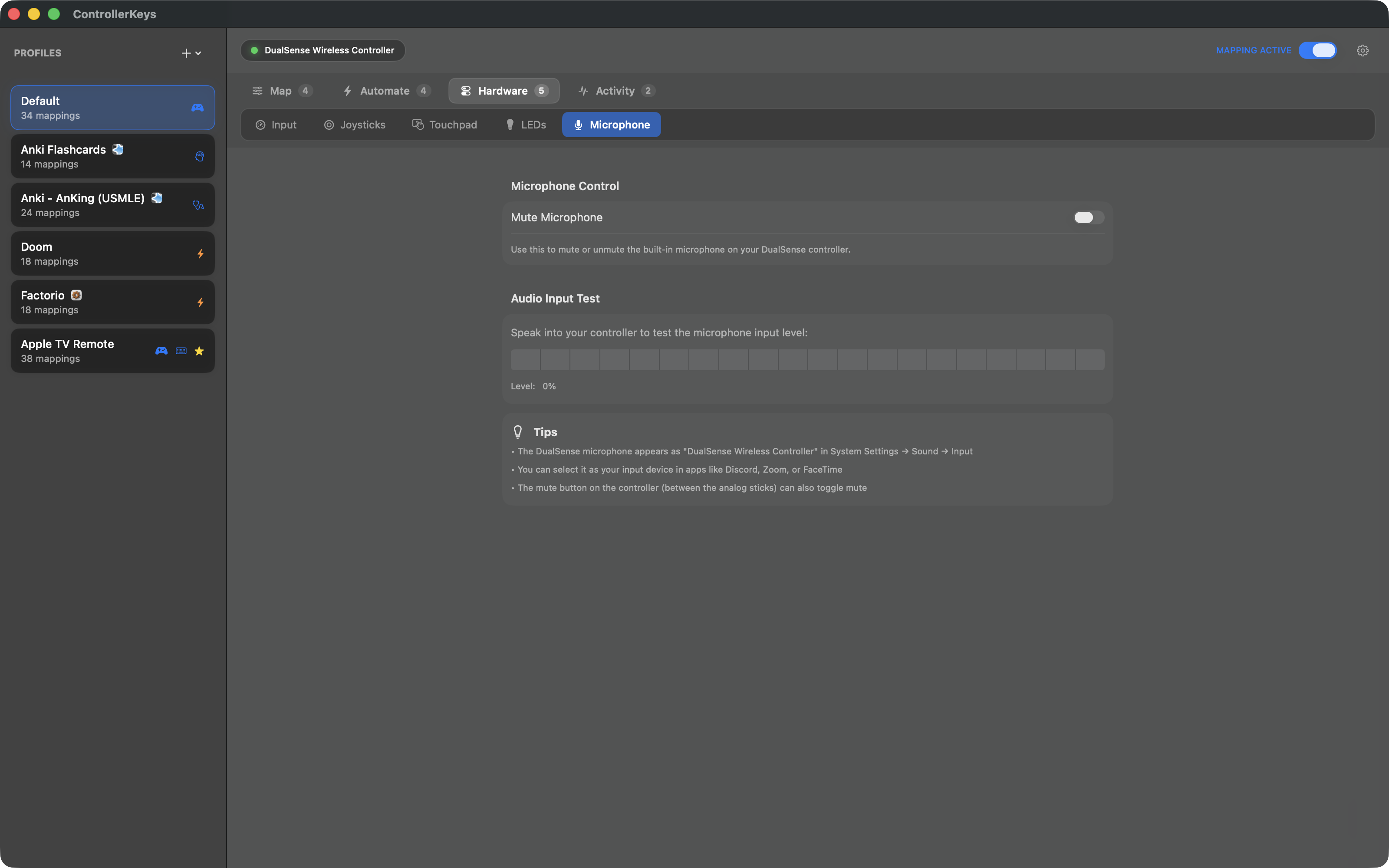
  • Microphone mute button mapping
  • DualShock 4 with PlayStation-style UI labels

🎛️ DualSense Touchpad

Use the touchpad as a full trackpad with multi-touch gesture support

Multi-touch Support

Two-finger gestures included

  • Trackpad mode for cursor control
  • Single-finger tap or click for left-click
  • Two-finger tap or click for right-click
  • Two-finger swipe for scrolling

🎮 300+ Controllers Supported

Not just Xbox and PlayStation — your third-party controller probably works too

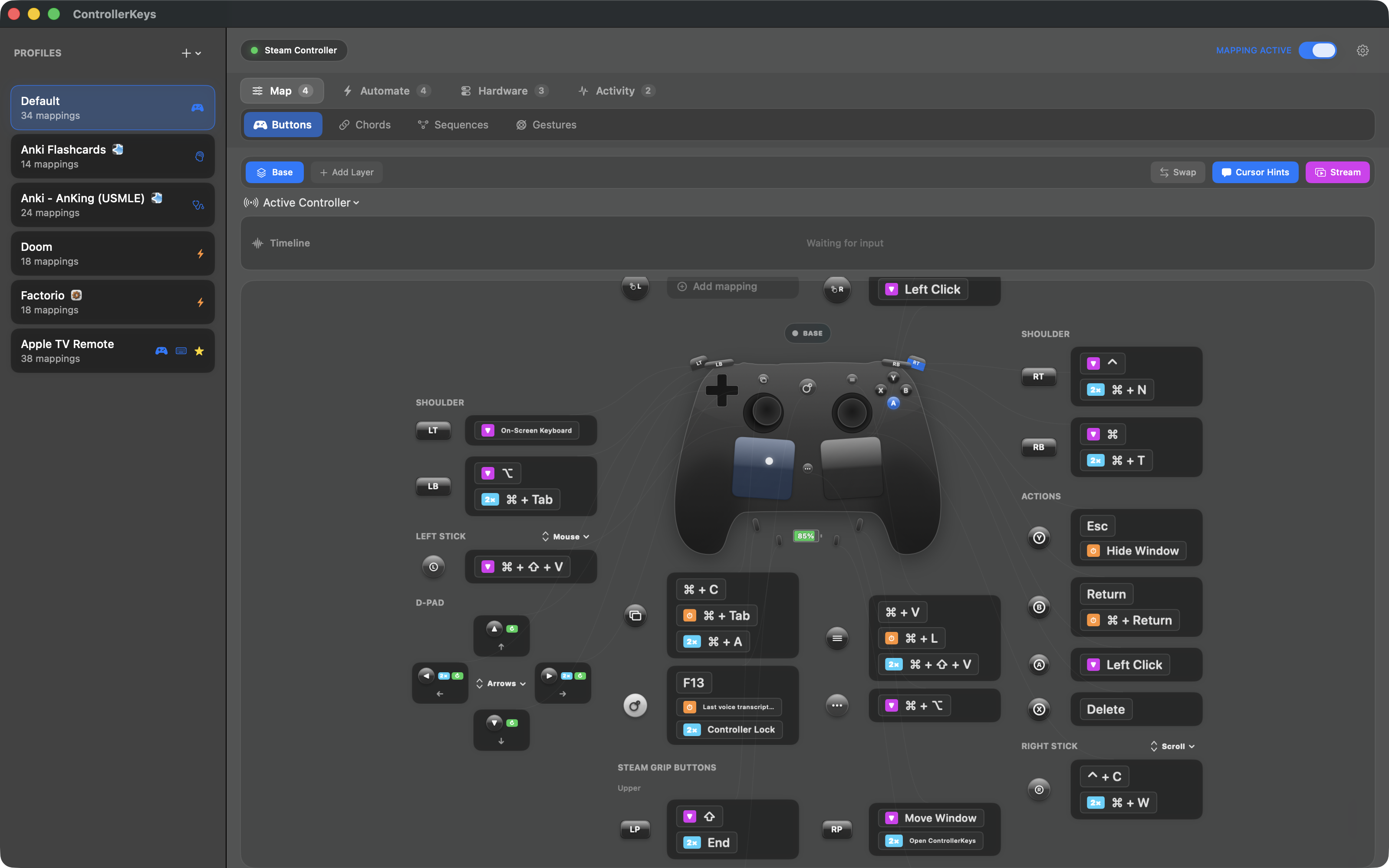
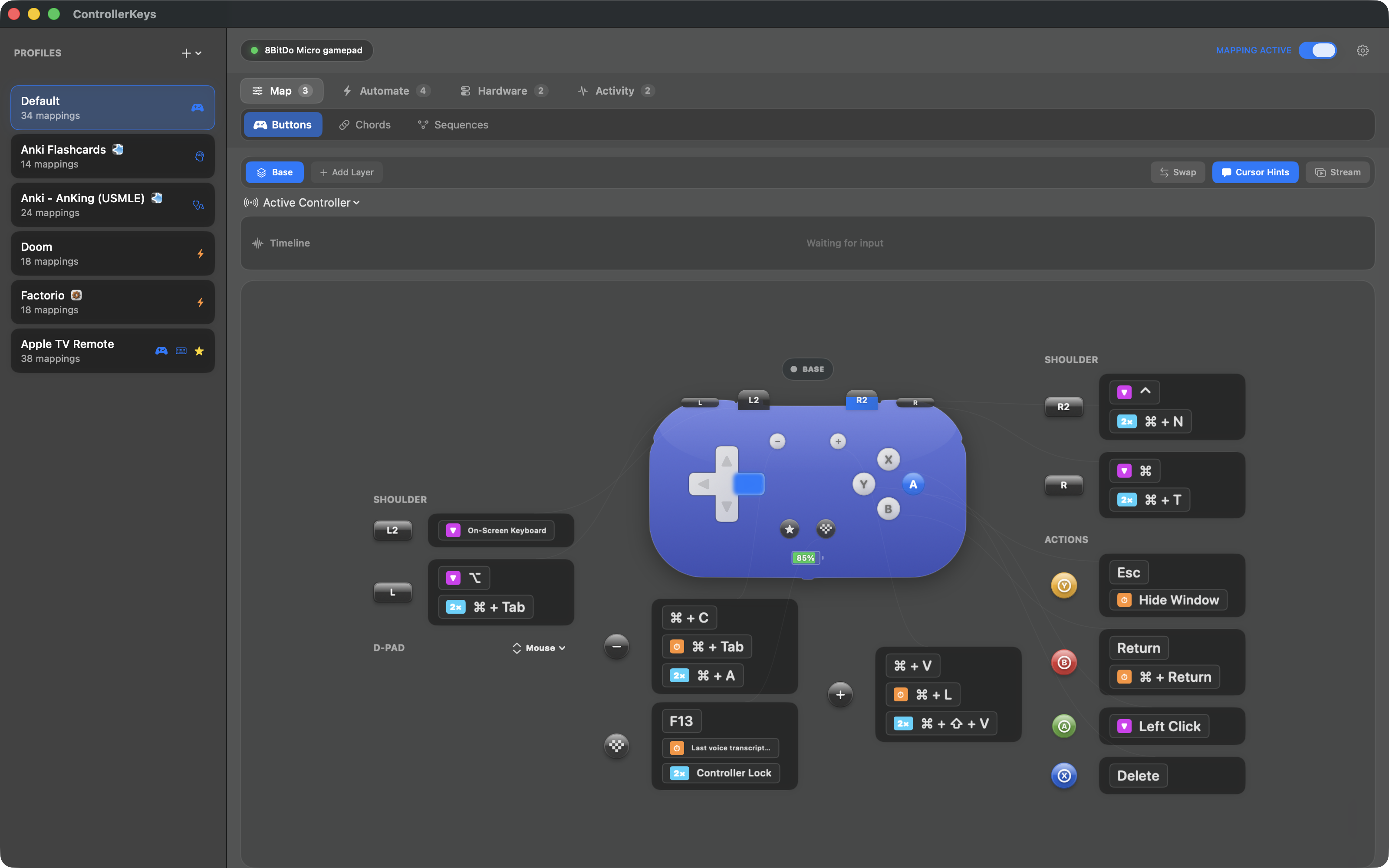
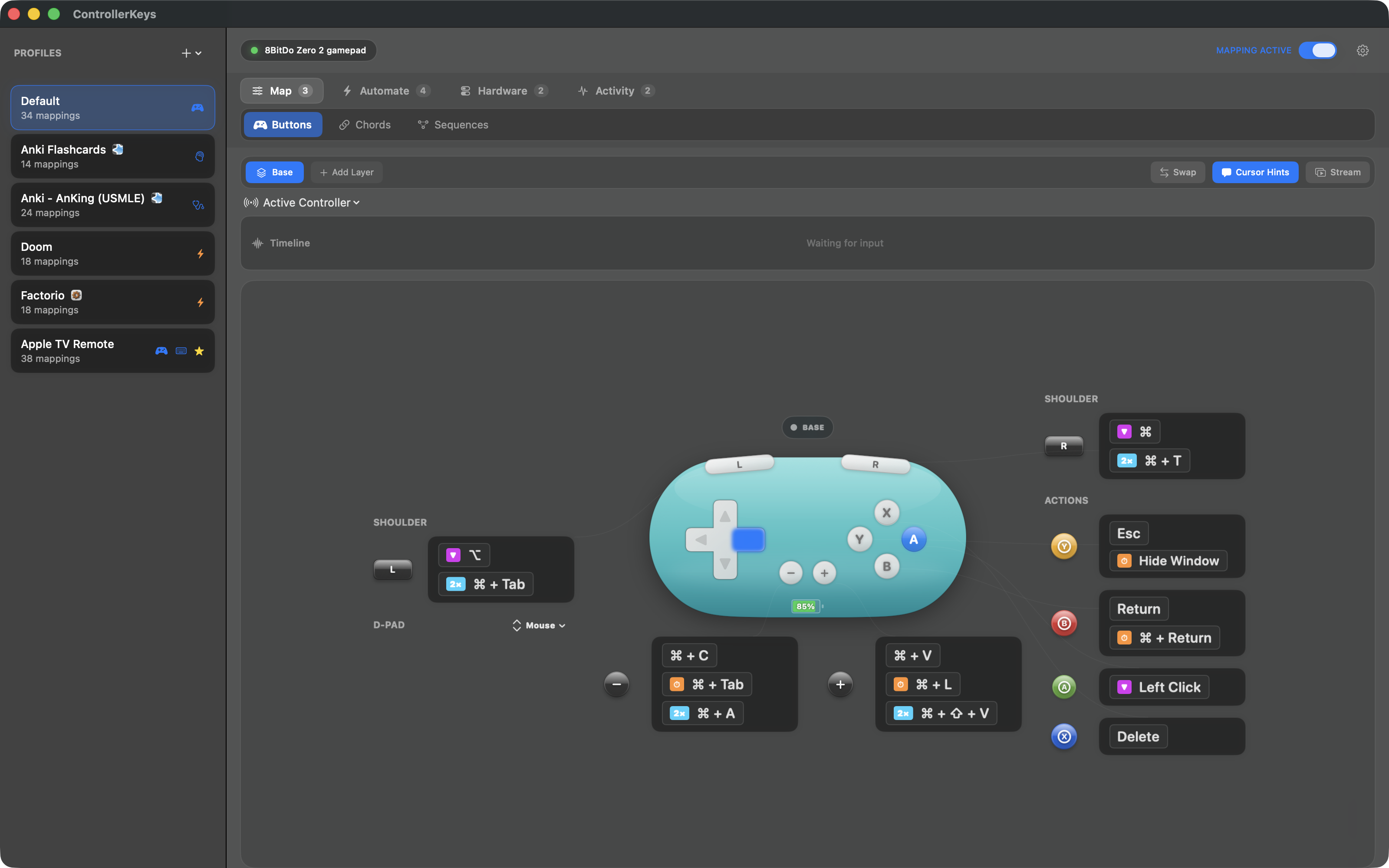
  • 8BitDo, Logitech, PowerA, Hori, and more
  • Automatic detection and mapping
  • Uses SDL controller database
  • No manual configuration needed

If macOS sees it as a game controller, ControllerKeys can map it.

📺 Stream Overlay

Show your controller inputs on stream

  • Floating overlay showing active button presses
  • Capture-ready for OBS window/display capture
  • Shows combined held actions

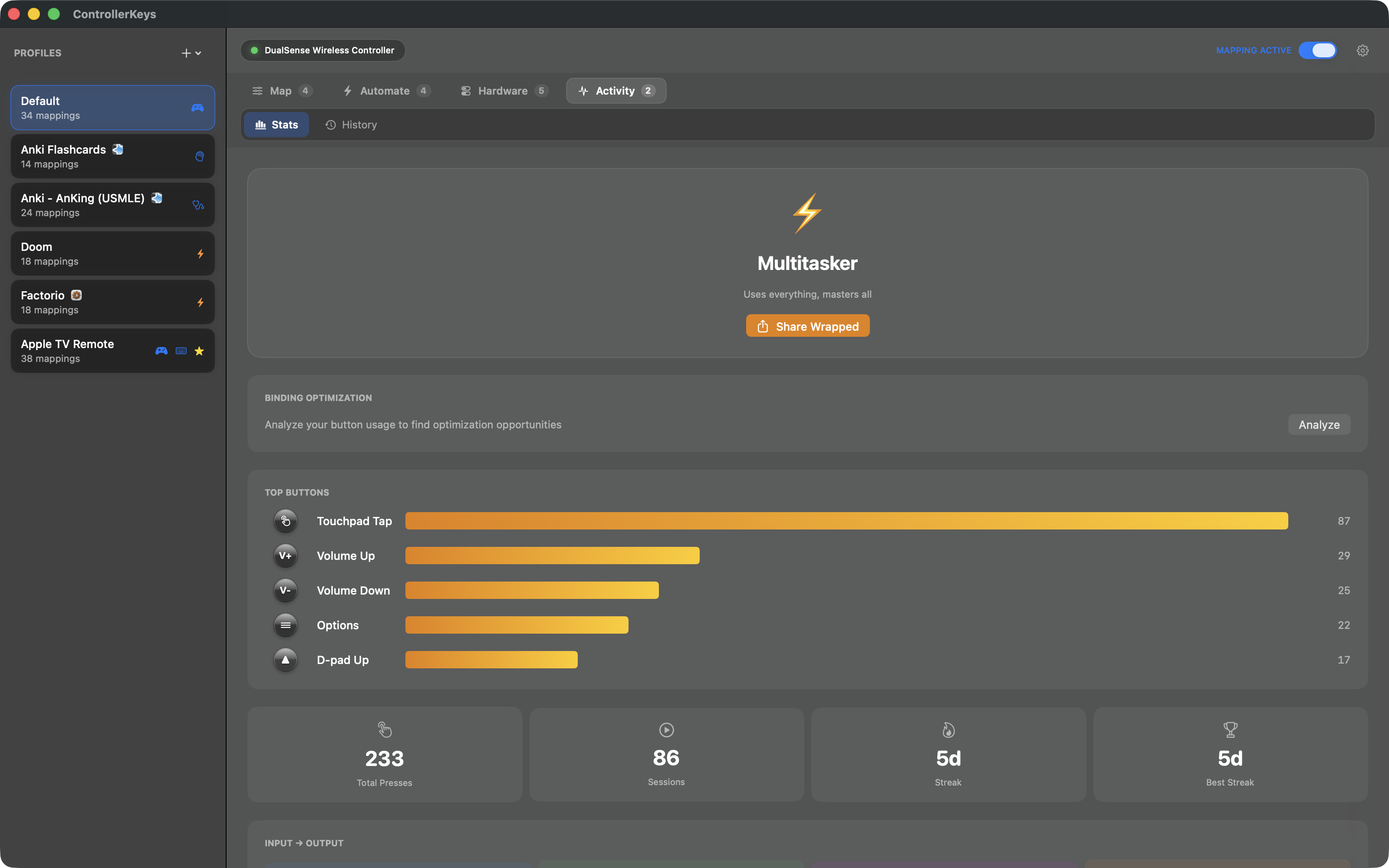
📊 Controller Wrapped

Track your usage stats and share your controller personality

  • Track every button press, macro, webhook, and app launch
  • Streak tracking and personality typing
  • Shareable card for social media
  • Detailed breakdown by input type and output action
Download Now — $49.99 $24.99

50% off launch price

Use Cases

Turn your spare controller into a productivity powerhouse

🎮 Spare Controller? Put It to Work

Don't let your old controllers collect dust

  • Repurpose Xbox One, Series X|S controllers
  • Give your PS5 DualSense or PS4 DualShock 4 a second life
  • 300+ third-party controllers via SDL database
  • Finally a use for that extra controller

Accessibility & RSI Relief

A comfortable alternative to keyboard and mouse

  • Ergonomic grip reduces wrist and finger strain
  • Great for carpal tunnel or repetitive strain injuries
  • Fully customizable sensitivity and mappings
  • Use from any position — reclined, standing, or seated

🛋️ Vibe Coding

Let AI write the code while you relax on the couch — just review and approve suggestions with your controller

  • Trigger Claude Code, Cursor, or Copilot with a button
  • Navigate code and accept suggestions hands-free
  • Perfect companion for Aider, Codex CLI, or Roo Code
  • Lean back and let AI do the heavy lifting

🥽 VR & Remote Computing

Control your Mac from inside a VR headset or across the room

  • Use with Meta Quest, Vision Pro, or any VR headset
  • Navigate your Mac without leaving the virtual world
  • DualSense touchpad works great for cursor control
  • No line-of-sight needed — controller just works

🃏 Anki & Flashcards

Review flashcards from the couch with full shortcut support — unlike Enjoyable

  • Map buttons to Again, Hard, Good, Easy
  • Cloze deletion (C) support
  • Full multi-key shortcuts like Z for undo
  • Long study sessions without hand fatigue

Switching from Enjoyable? ControllerKeys supports modifier combos, chords, and macros that Enjoyable can't do.

🎙️ Voice + Controller

Combine with voice transcription for fully hands-free computing

  • Pair with VoiceInk or other Whisper-based apps
  • Map a button to start/stop voice recording
  • Dictate text, navigate with controller
  • The ultimate couch computing setup

🎓 Lectures & Teaching

A wireless controller for your classroom — move freely while managing slides, OBS scenes, and recordings

  • Advance slides from anywhere in the lecture hall
  • Switch OBS scenes and toggle sources wirelessly
  • Start/stop recordings without returning to your desk
  • Mute/unmute audio with a button press

"I teach a 200+ student introductory Physics course and used to control OBS with a Stream Deck from Elgato. Stream Deck worked, but it's wired and has no trackpad. Switching to my PS5 DualSense with ControllerKeys was an easy call — Bluetooth means I can move around the room freely, and the touchpad handles cursor control perfectly. My lectures are a lot more fun to run now, and my students get a kick out of seeing their professor run the whole show with a PS5 controller."

— Rizal F. Hariadi, Associate Professor of Physics
Arizona State University

📡 Presenters & Streamers

Trigger webhooks and OBS WebSocket commands from your controller — no keyboard required

  • Fire webhooks from any button press
  • Toggle OBS scenes, sources, and filters via WebSocket
  • Perfect for live demos and presentations
  • Replaces Stream Deck with a wireless controller
Get ControllerKeys — $49.99 $24.99

50% off launch price — limited time

Screenshots

See the app in action with Xbox and DualSense controllers

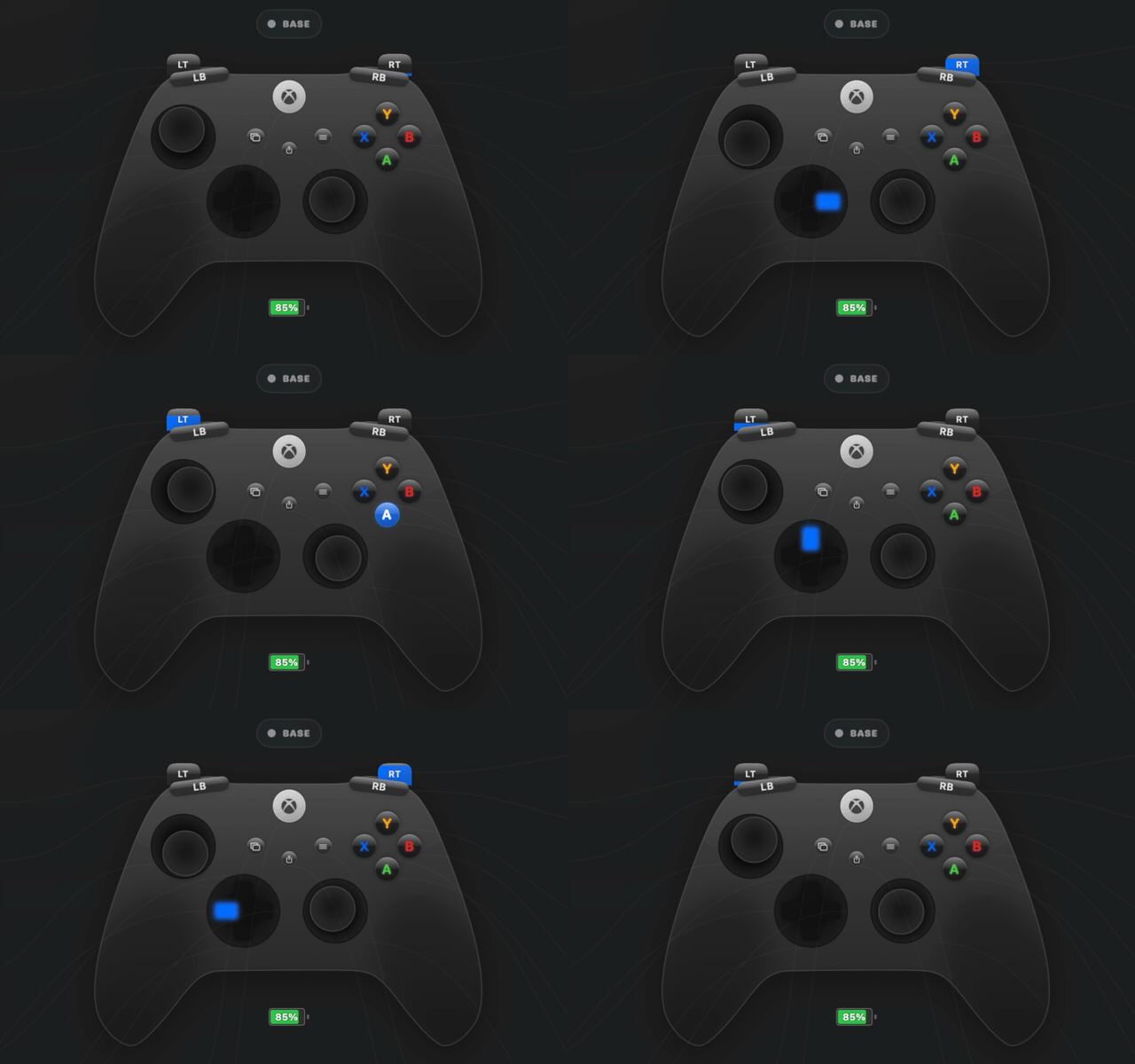
Xbox Series X|S

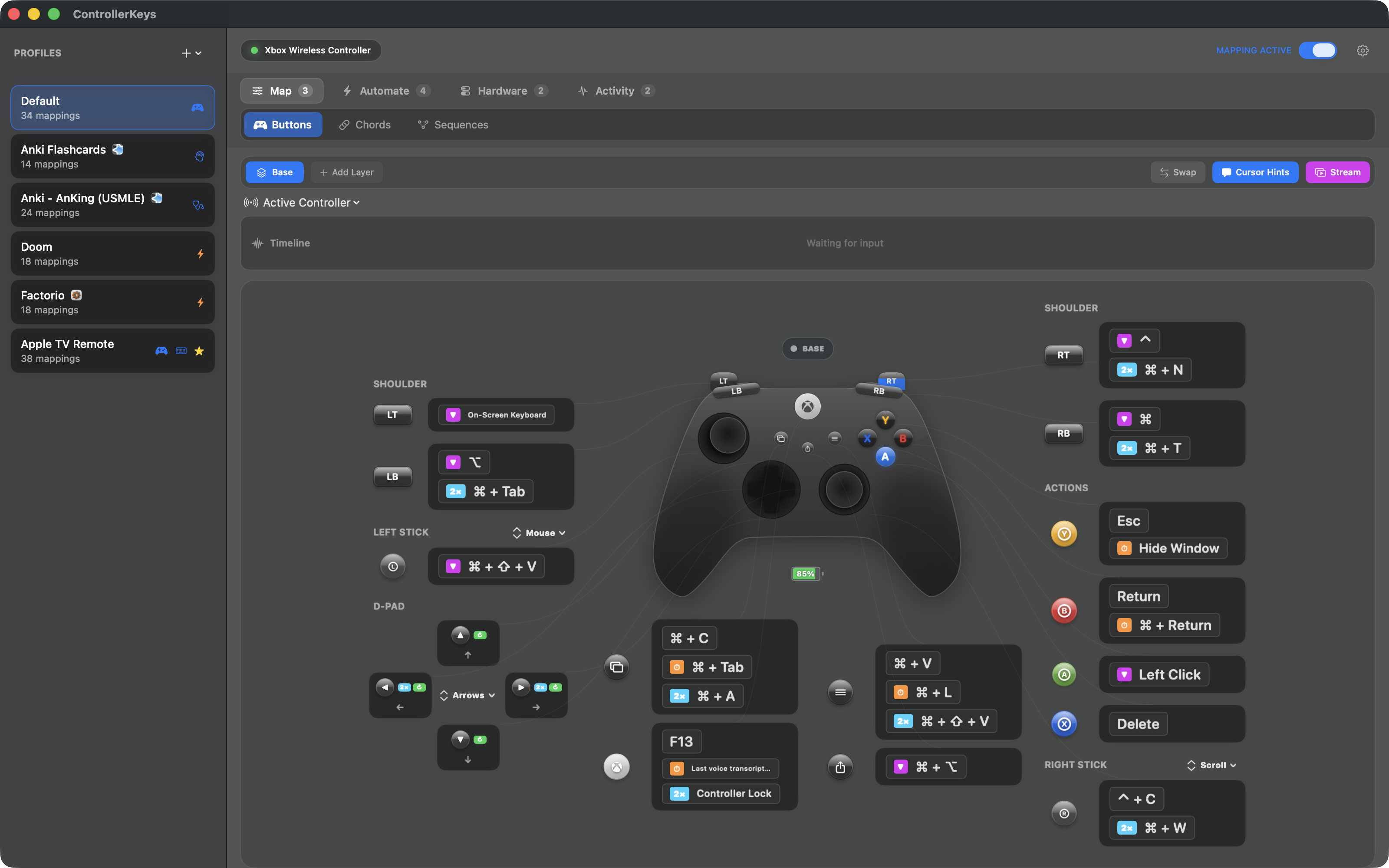
Xbox Series X controller button mapping interface on macOS showing customizable keyboard shortcuts
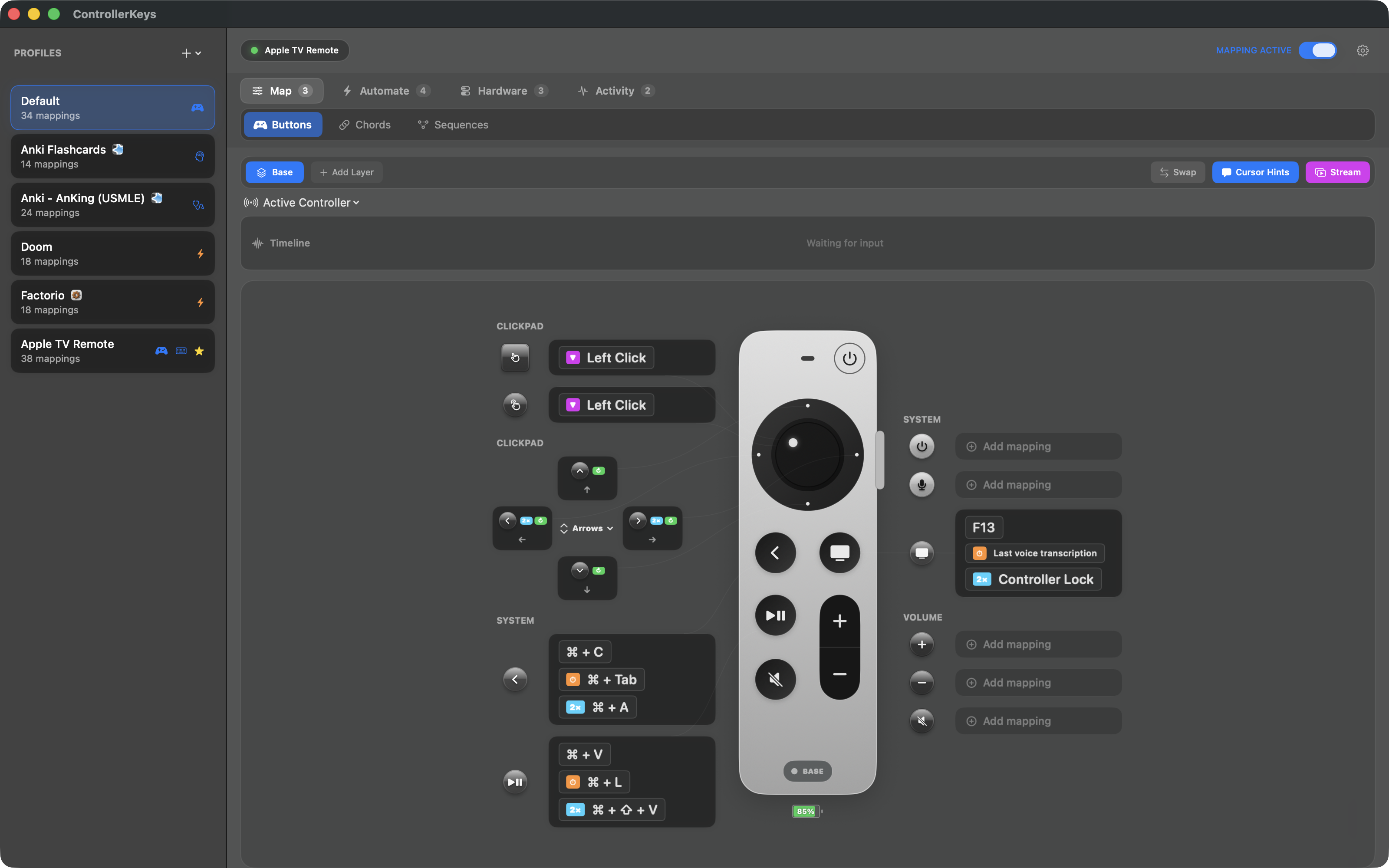
Button Mappings Visual controller layout with all your button mappings at a glance
Xbox controller chord mapping - combine multiple buttons for keyboard shortcuts on Mac
Chord Mappings Combine multiple buttons for even more shortcuts
Xbox controller joystick to mouse cursor and scroll wheel settings on macOS
Joystick Settings Fine-tune mouse sensitivity, deadzone, and scroll speed
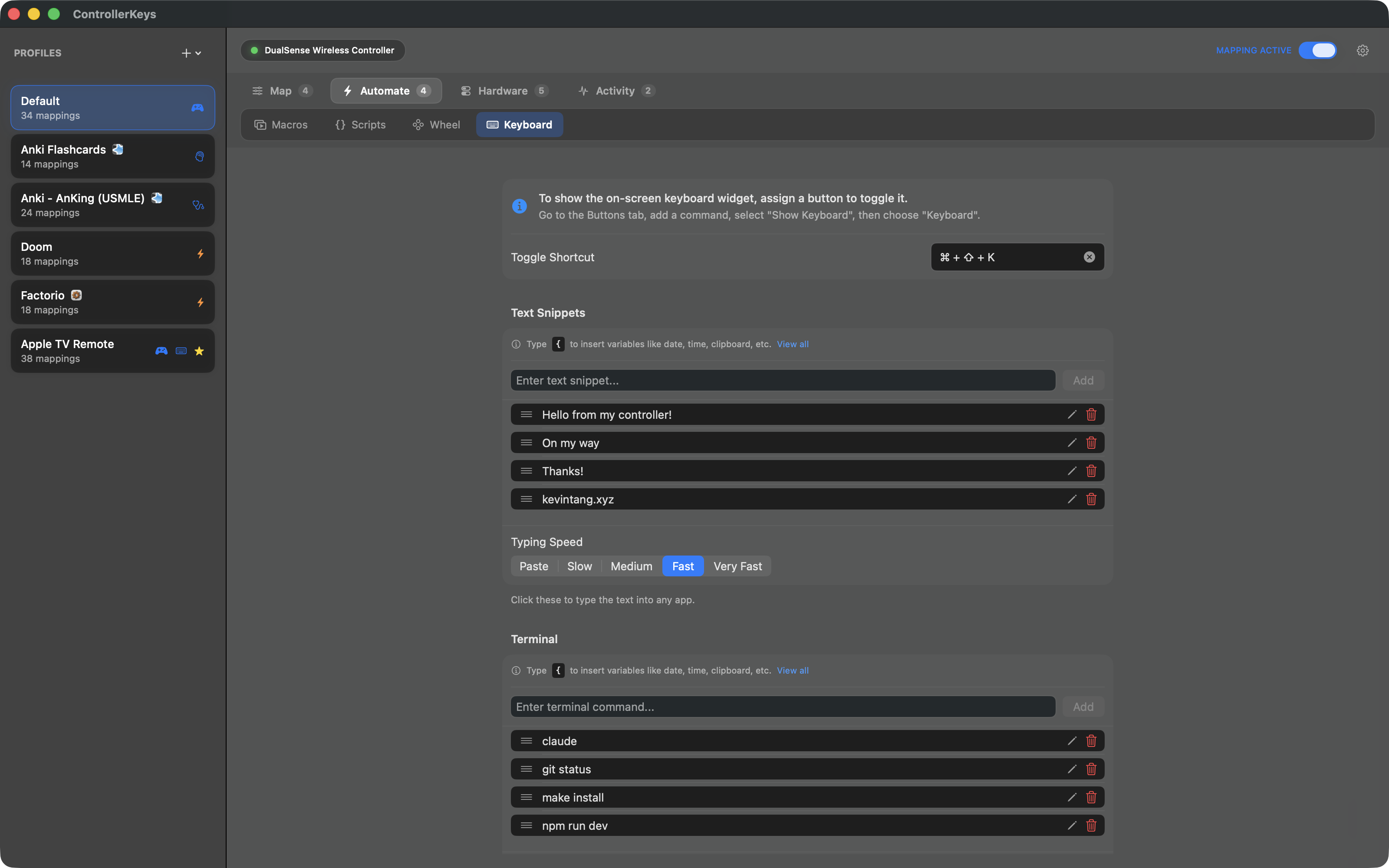
Xbox controller on-screen keyboard widget with quick text and terminal commands
On Screen Keyboard Widget Configure quick actions and on-screen keyboard settings
Xbox controller on-screen keyboard for typing without physical keyboard - couch computing
On-Screen Keyboard Type without reaching for your physical keyboard

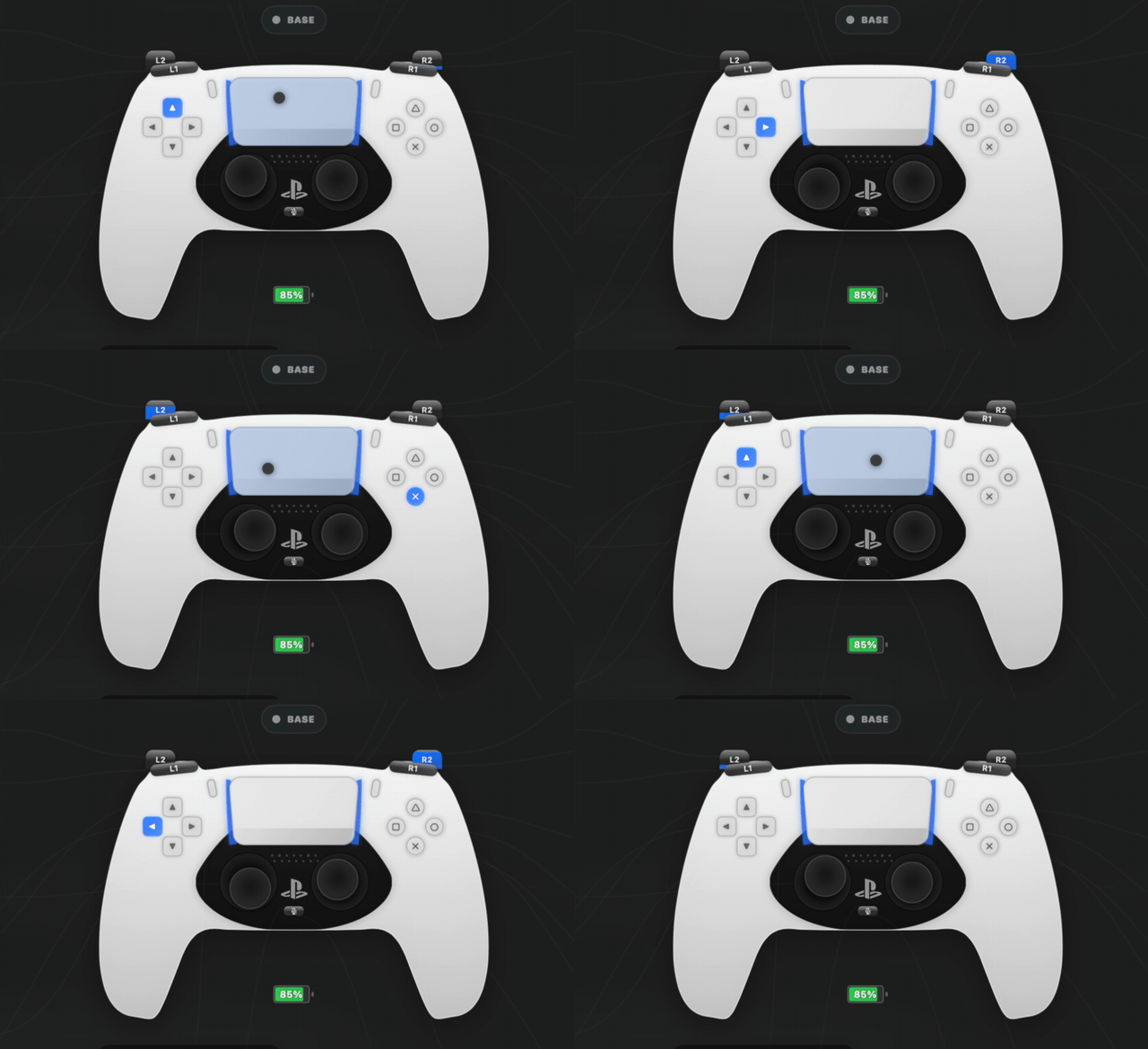
DualSense (PS5)

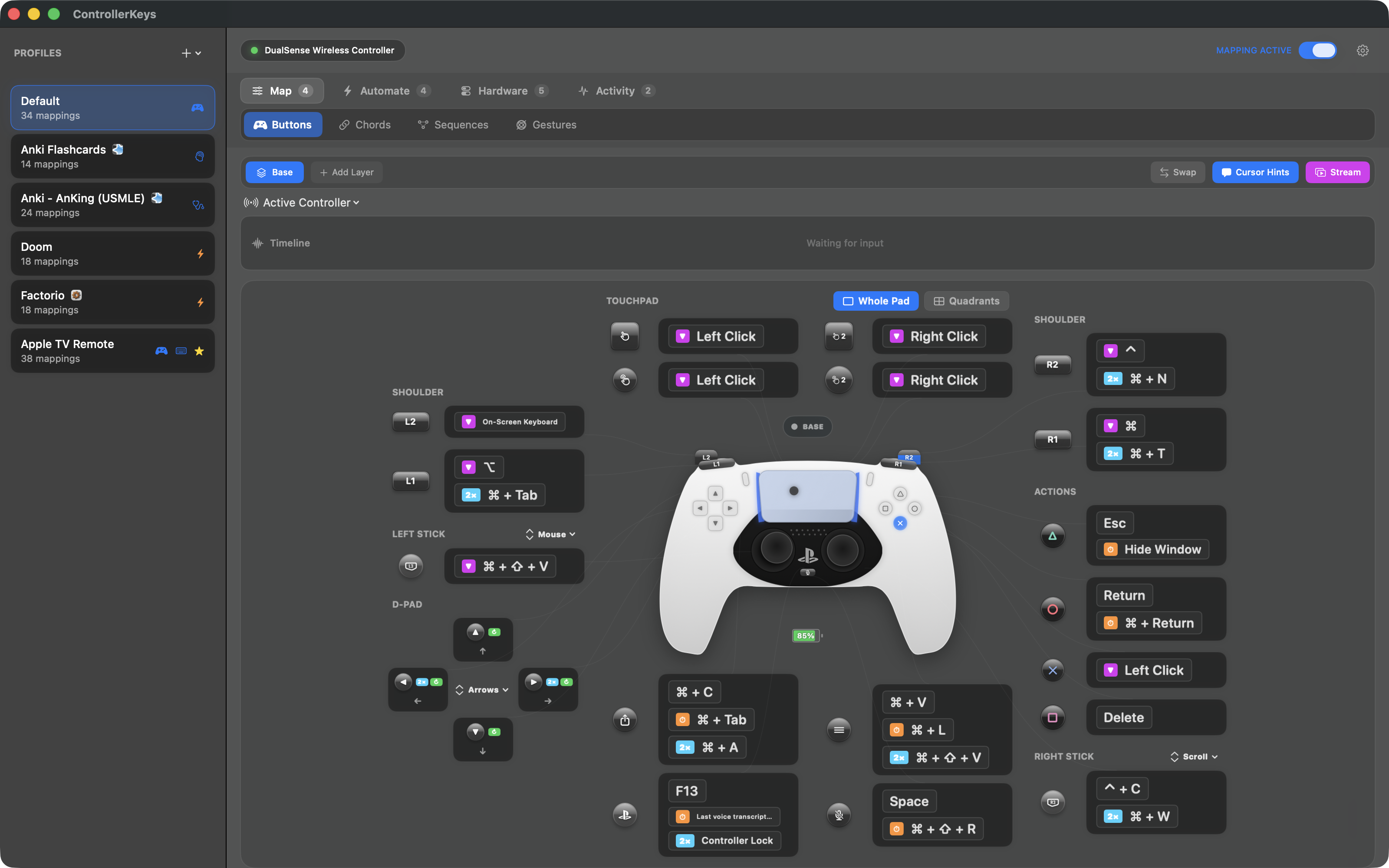
PS5 DualSense controller button mapping interface on macOS showing customizable keyboard shortcuts
Button Mappings Full DualSense layout with all buttons configurable
PS5 DualSense chord mapping - combine multiple buttons for keyboard shortcuts on Mac
Chord Mappings Combine multiple buttons for even more shortcuts
PS5 DualSense joystick to mouse cursor and scroll wheel settings on macOS
Joystick Settings Fine-tune mouse sensitivity, deadzone, and scroll speed
PS5 DualSense on-screen keyboard widget with quick text and terminal commands
On Screen Keyboard Widget Configure quick actions and on-screen keyboard settings
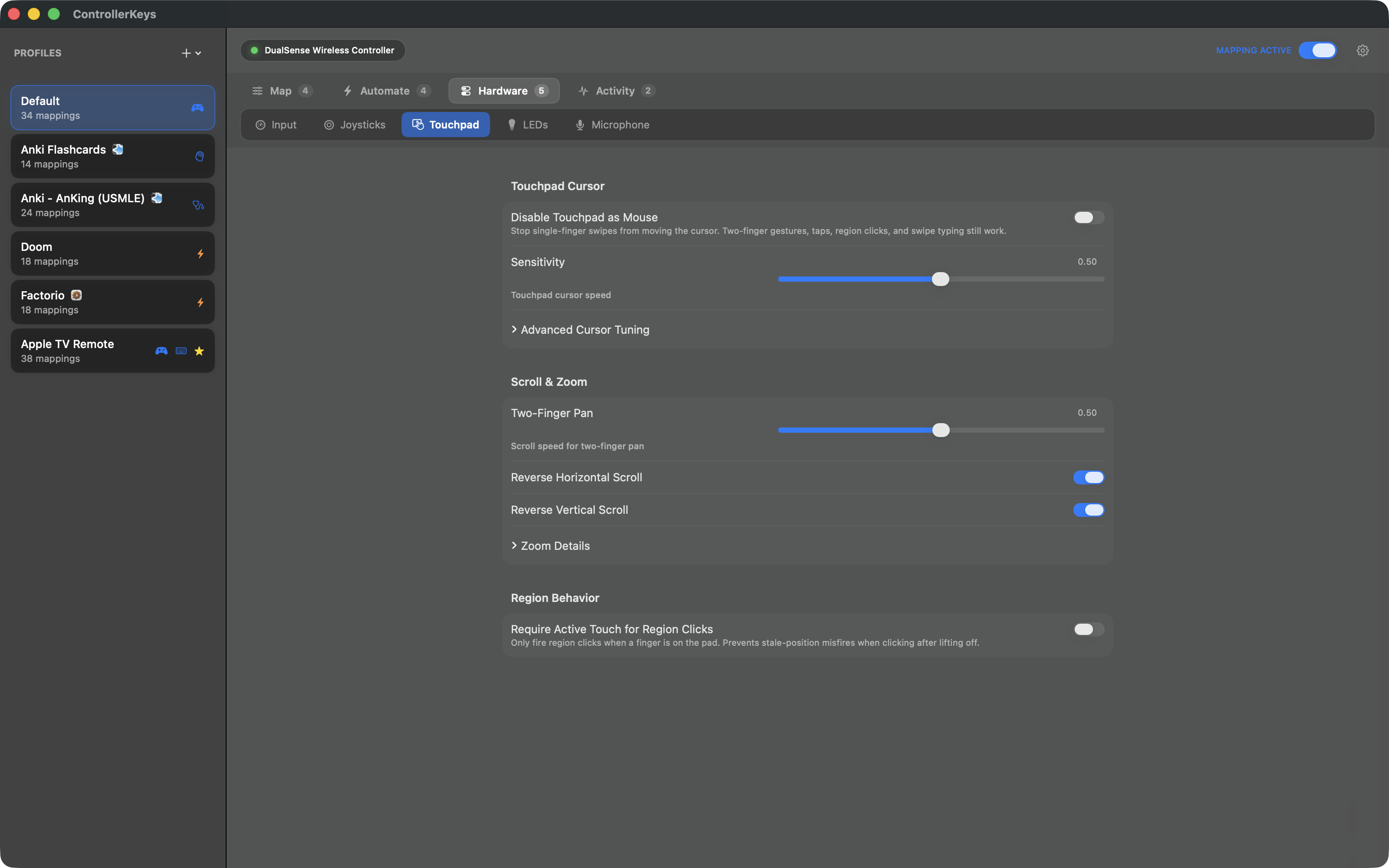
PS5 DualSense touchpad settings - use touchpad as trackpad for mouse control on Mac
Touchpad Settings Configure touchpad sensitivity and gesture options
PS5 DualSense multi-touch touchpad gestures for scrolling and right-click on macOS
Multi-touch Touchpad Full gesture support for precise control
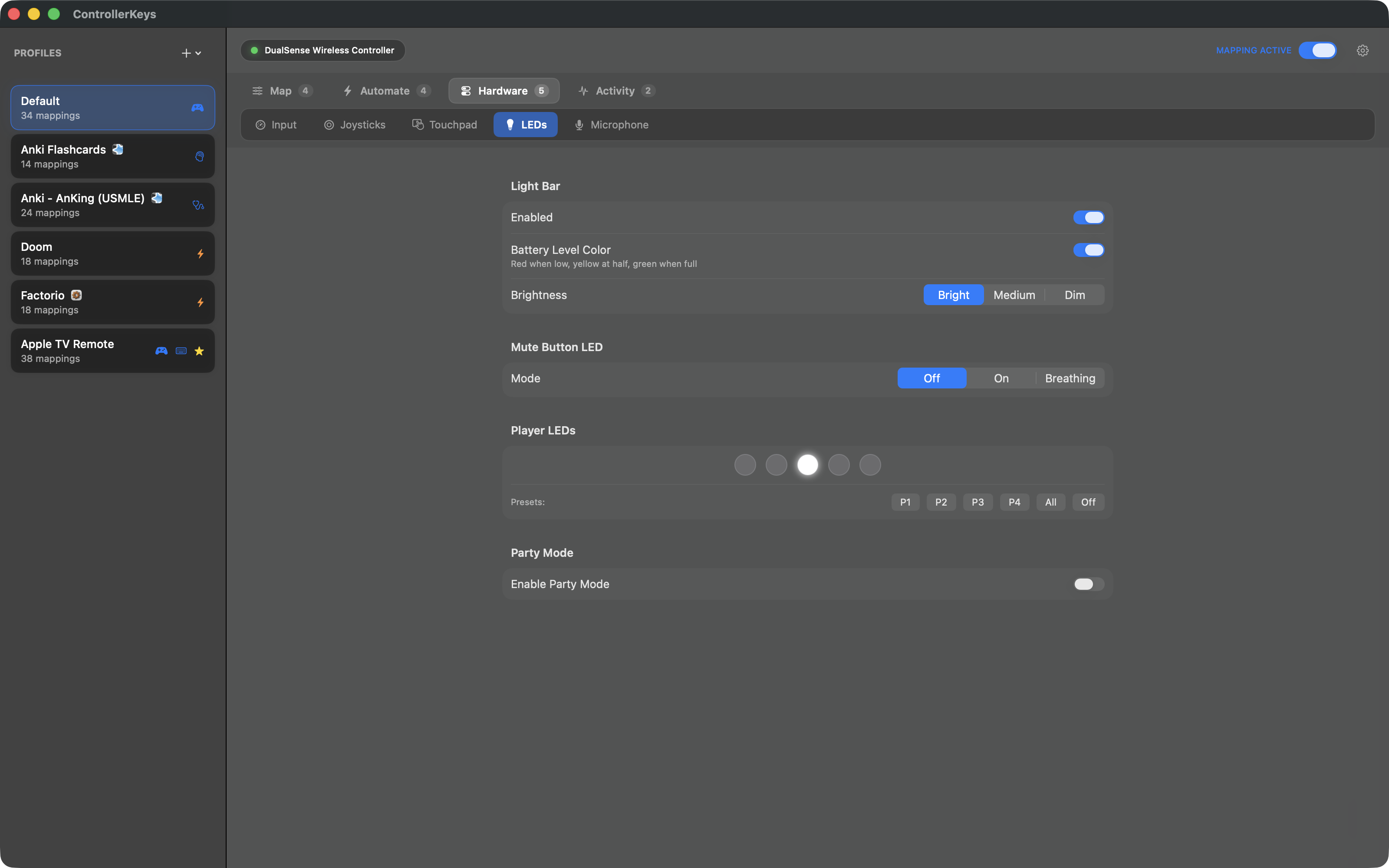
PS5 DualSense LED light bar color customization on macOS
LED Customization Set custom colors for the DualSense light bar
PS5 DualSense built-in microphone and mute button settings on macOS
Microphone Settings Configure the built-in microphone and mute button
PS5 DualSense on-screen keyboard for typing without physical keyboard - couch computing
On-Screen Keyboard Type without reaching for your physical keyboard
Try ControllerKeys — $49.99 $24.99

Open source & Apple notarized

Troubleshooting

Solutions to common issues

Controller Not Detected

  1. Check Bluetooth connection in System Settings
  2. Forget the device and re-pair
  3. Restart the app
  4. Check controller battery level

Button Presses Not Working

  1. Verify Accessibility permissions (System Settings → Privacy & Security → Accessibility)
  2. Remove the app from the list (select it and click the minus button), then re-add it
  3. Restart the app after granting permissions
  4. Check enable/disable toggle in menu bar

Mouse/Scroll Issues

  1. Increase deadzone if joystick drifts
  2. Adjust sensitivity for desired speed
  3. Verify mapping is enabled in menu bar

Stuck Modifier Keys

  1. Press the physical modifier key on your keyboard
  2. Or restart the app to clear all held modifiers

App Won't Launch

  1. Check macOS version (requires 14.0+)
  2. Reset config: Delete ~/.controllerkeys/config.json
  3. Check Console.app for crash logs

FAQ

Answers to frequently asked questions

Connecting Your Controller

Yes! Xbox Series X|S controllers connect to Mac via Bluetooth. Put your controller in pairing mode (hold the pairing button until the Xbox button flashes), then go to System Settings → Bluetooth and select the controller.

Once connected, ControllerKeys lets you use it for productivity — not just gaming.

Yes! DualSense controllers work great with Mac. Hold the Create and PS buttons together until the light bar flashes, then pair via System Settings → Bluetooth.

With ControllerKeys, you get full touchpad support as a trackpad, plus LED color customization when connected via USB.

Bluetooth: Wireless convenience, works great for most features.

USB: Required for DualSense LED color customization and microphone access. Also provides slightly lower latency and keeps your controller charged.

1. Turn on your Xbox controller by pressing the Xbox button

2. Hold the pairing button (top of controller) for 3 seconds until the Xbox button flashes rapidly

3. On your Mac, go to System Settings → Bluetooth

4. Select "Xbox Wireless Controller" from the list

1. Turn off your DualSense controller if it's on

2. Hold the Create button (left of touchpad) and PS button together for 3 seconds

3. The light bar will flash blue when in pairing mode

4. On your Mac, go to System Settings → Bluetooth and select "DualSense Wireless Controller"

General

Yes. The app is fully open source — you can verify exactly what it does. It never phones home or collects data. Network access only occurs when you explicitly configure webhooks, OBS commands, or import community profiles.

Controller inputs are translated to keyboard/mouse events in real-time and immediately discarded. The app is signed and notarized by Apple.

The app supports Xbox Series X|S, PlayStation 5 DualSense, DualSense Edge, PlayStation 4 DualShock 4, and 300+ third-party controllers via the SDL database.

DualSense and DualShock 4 controllers get additional features: full touchpad support, multi-touch gestures, and gyroscope aiming. DualSense also gets LED customization and microphone access via USB.

Yes! The app supports 300+ third-party controllers including 8BitDo, Logitech, PowerA, Hori, and many more. It uses the SDL controller database for automatic detection and mapping — no manual configuration needed.

If macOS sees your controller as a game controller, ControllerKeys can map it.

Currently, the app supports one controller at a time. The first connected controller will be used.

The app is designed for productivity (coding, browsing, general use). Most games have native controller support. Using both may cause conflicts or double inputs.

Mapping

When configuring a button, select only the modifier ( ) without a key, and enable "Hold Modifier".

The modifier will be active while the button is pressed.

Yes. In the key capture field, select "Mouse Left Click" or "Mouse Right Click" as the action.

They're independent:

  • Quick tap → normal action
  • Quick double-tap → double-tap action
  • Hold past threshold → long-hold action

Yes. Clear all mappings from the button configuration. It will do nothing when pressed.

Joystick

Increase the deadzone setting. 15-20% usually eliminates drift while maintaining responsiveness.

Use Focus Mode. Set a modifier as the trigger, then hold it while moving the joystick for slower, precise movement.

Currently, left stick is always mouse and right stick is always scroll. This isn't configurable yet.

Technical

Profiles save to ~/.controllerkeys/config.json — a human-readable JSON file you can backup or share.

Generally yes. They operate at different levels — this app handles controller input, while Karabiner and Hammerspoon handle keyboard input and automation. They typically don't conflict.

Yes. Add ControllerKeys to System Settings → General → Login Items.

The app continuously monitors controller input and translates it to keyboard/mouse events in real-time. Quitting stops all mapping.

Vibe Coding & Use Cases

Vibe coding is a relaxed approach to programming where you use AI assistants like Claude Code, Cursor, or Copilot to do most of the heavy lifting while you guide the process.

ControllerKeys lets you control your IDE from the couch — navigate code, accept AI suggestions, and trigger commands without touching a keyboard.

Absolutely! Map buttons to trigger AI completions, accept suggestions, or run terminal commands. Works great with Claude Code, Cursor, Copilot, Aider, Codex CLI, Roo Code, and any other AI coding assistant.

Pair this app with a voice transcription tool like VoiceInk (open source, Whisper-based). Map a controller button to toggle voice recording, and you have hands-free typing.

This combo is perfect for couch computing — dictate text while using the controller for navigation and commands.

Turn it into a productivity tool! Use it to control your Mac from the couch, navigate presentations, browse the web, or code with AI assistance. It's a great way to repurpose controllers you're not using for gaming.

Yes. Controllers are ergonomically different from keyboards and mice, which can help if you have repetitive strain injuries or need alternative input methods. The customizable mappings let you adapt it to your specific needs.