Scroll anywhere on your Mac and two little elevator buttons appear right at your cursor — click to leap to the very top or bottom, or hold to cruise.
Your hand never leaves the trackpad: no reaching for the keyboard, no dragging the scrollbar.
Made for anyone who lives in long pages — code, logs, docs, long threads, PDFs, chat histories.
This whole page is running a JavaScript clone of the real app, built from the actual Swift source. Flick your trackpad anywhere and the elevator buttons appear at your cursor — click to jump to the top or bottom of this page, or press and hold to cruise. It's the native overlay, pixel-for-pixel.
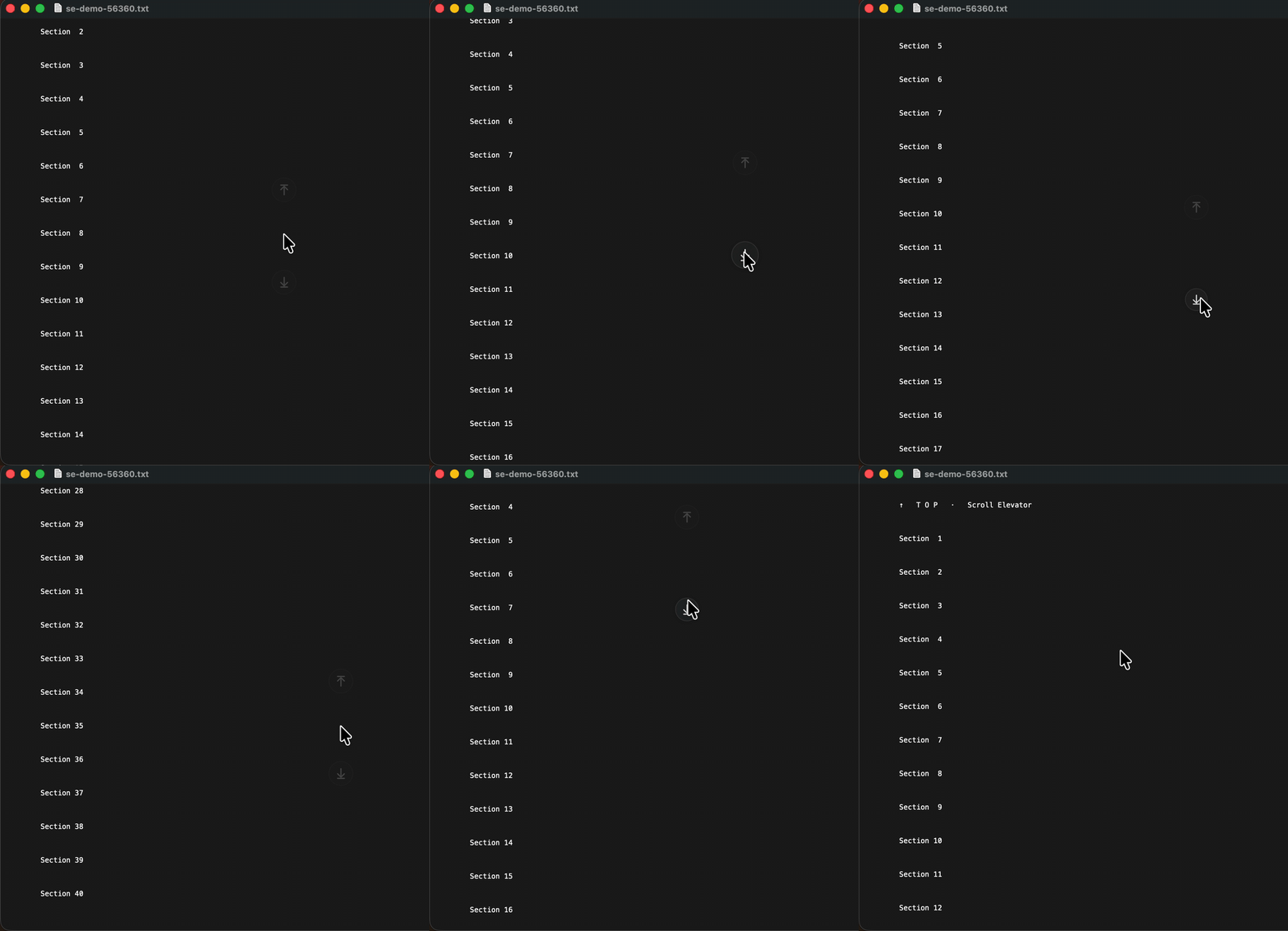
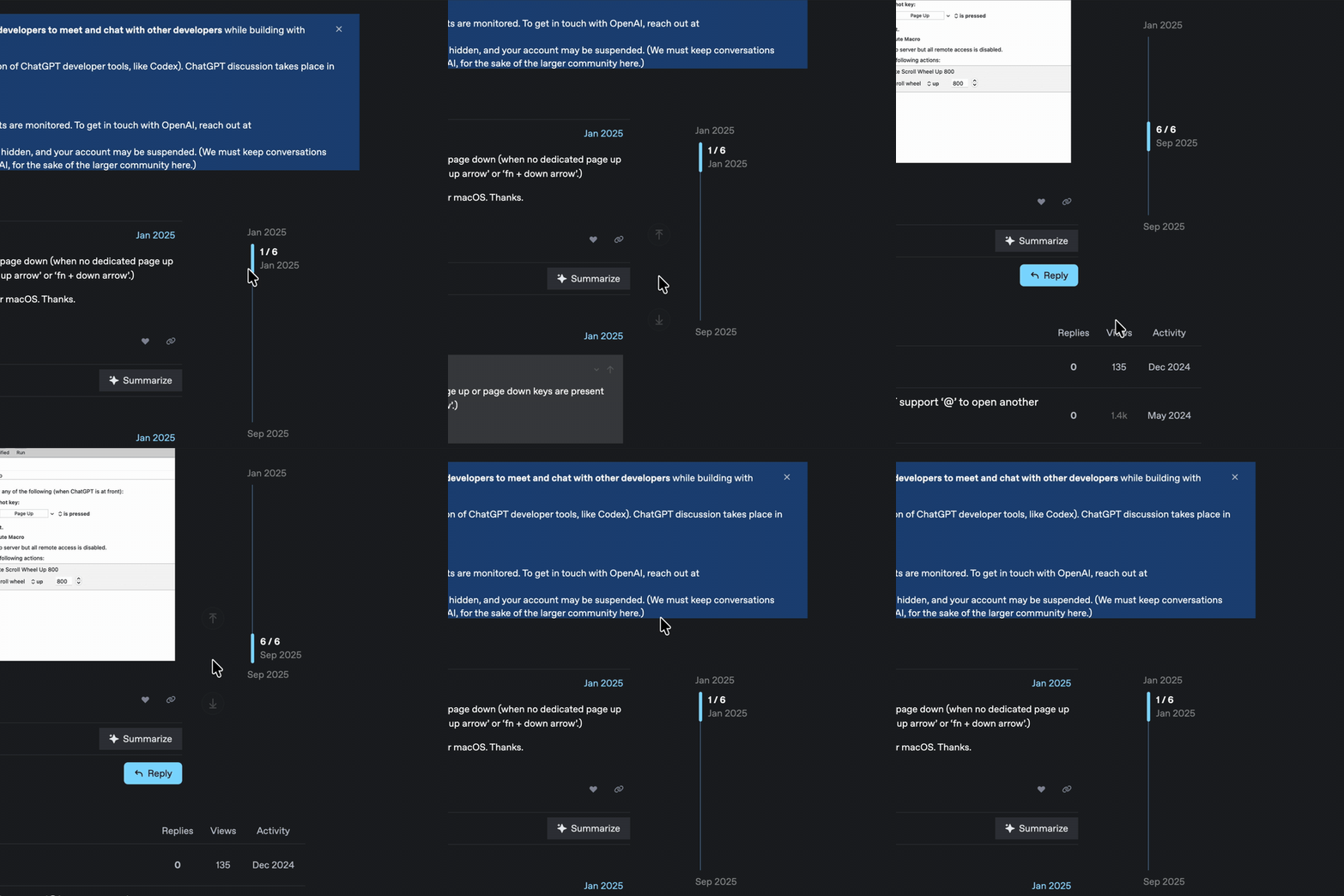
The clone here only drives this web page. The real app does this in every Mac app, system-wide — Chrome, Finder, Preview, Xcode, your terminal. Feel it here, then get the one that follows you everywhere.
The pair on the left is just a preview. Prefer to read in peace? Toggle the demo off, bottom-right.
One job, done with the kind of care a single-purpose utility lives or dies by.
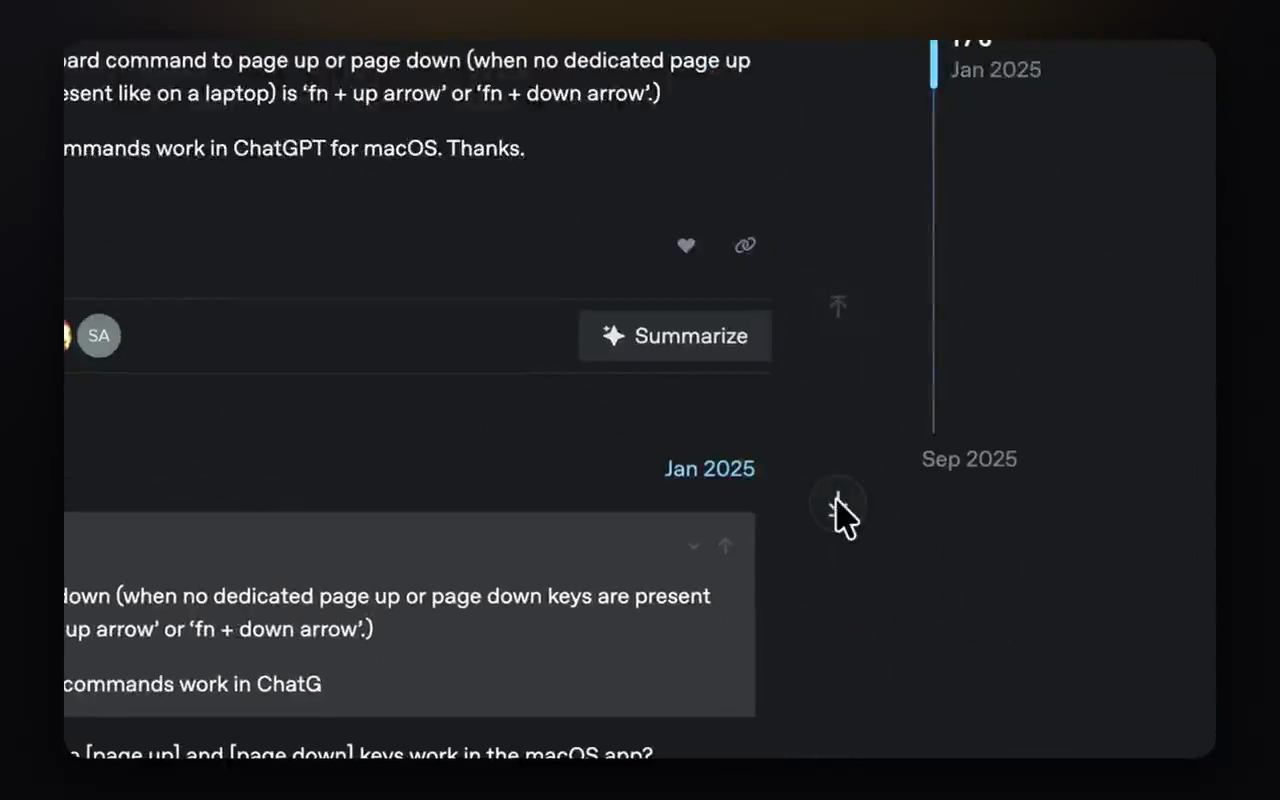
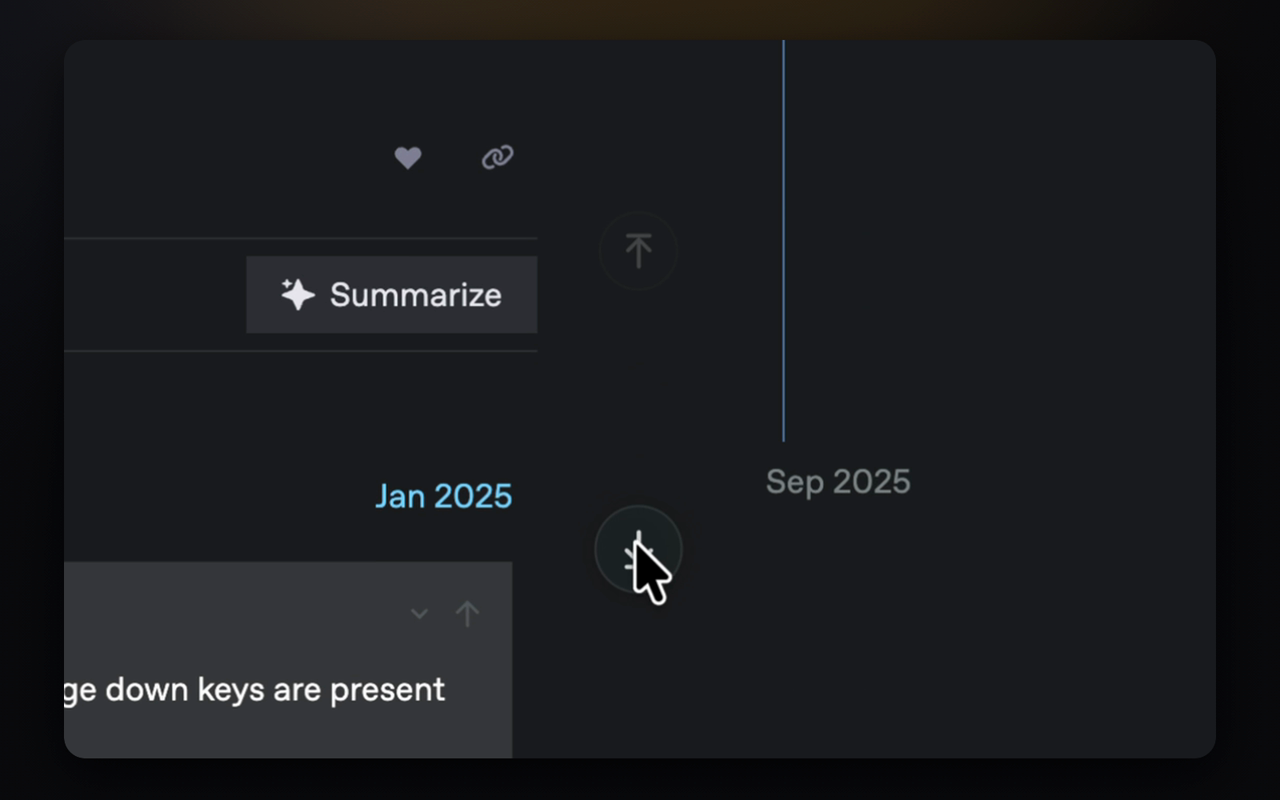
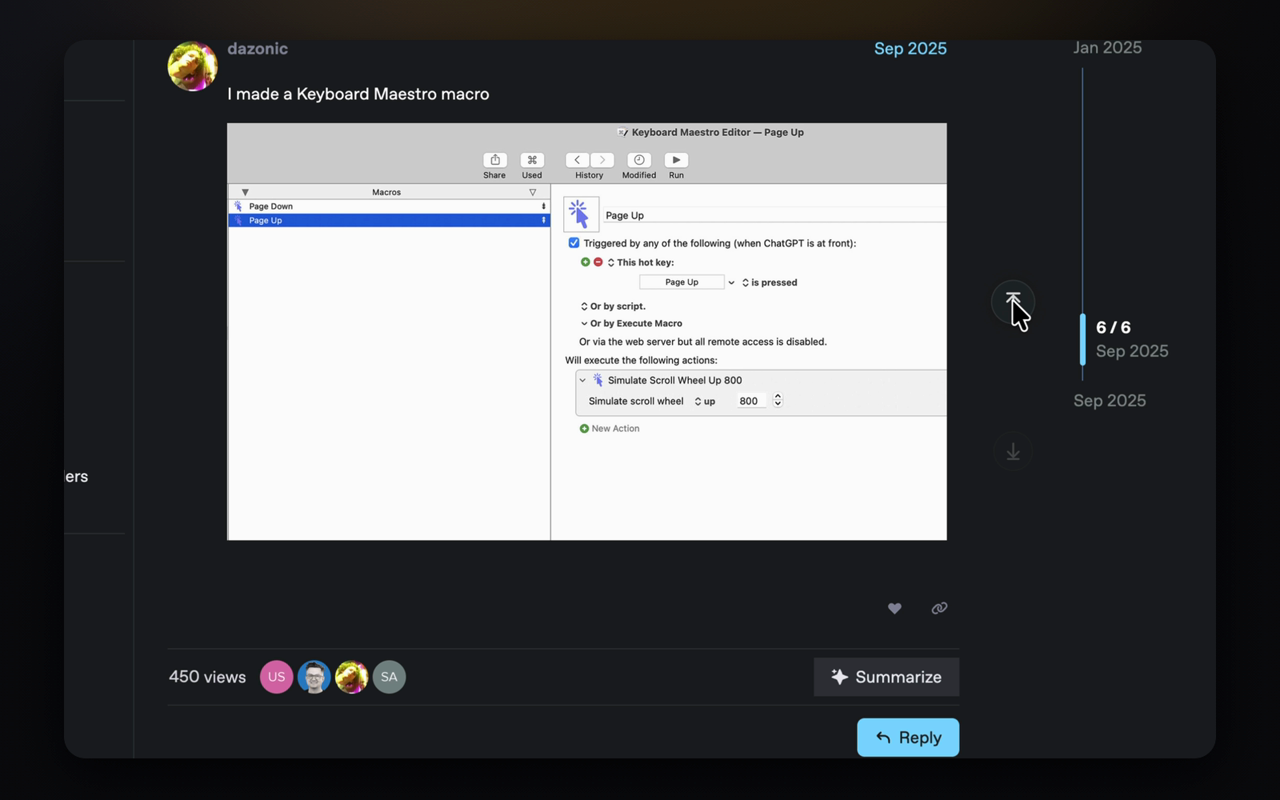
To hit Home, End, or ⌘↑ you reach for the keyboard. Scroll Elevator puts top and bottom right under the cursor your hand is already on — jump without moving it.
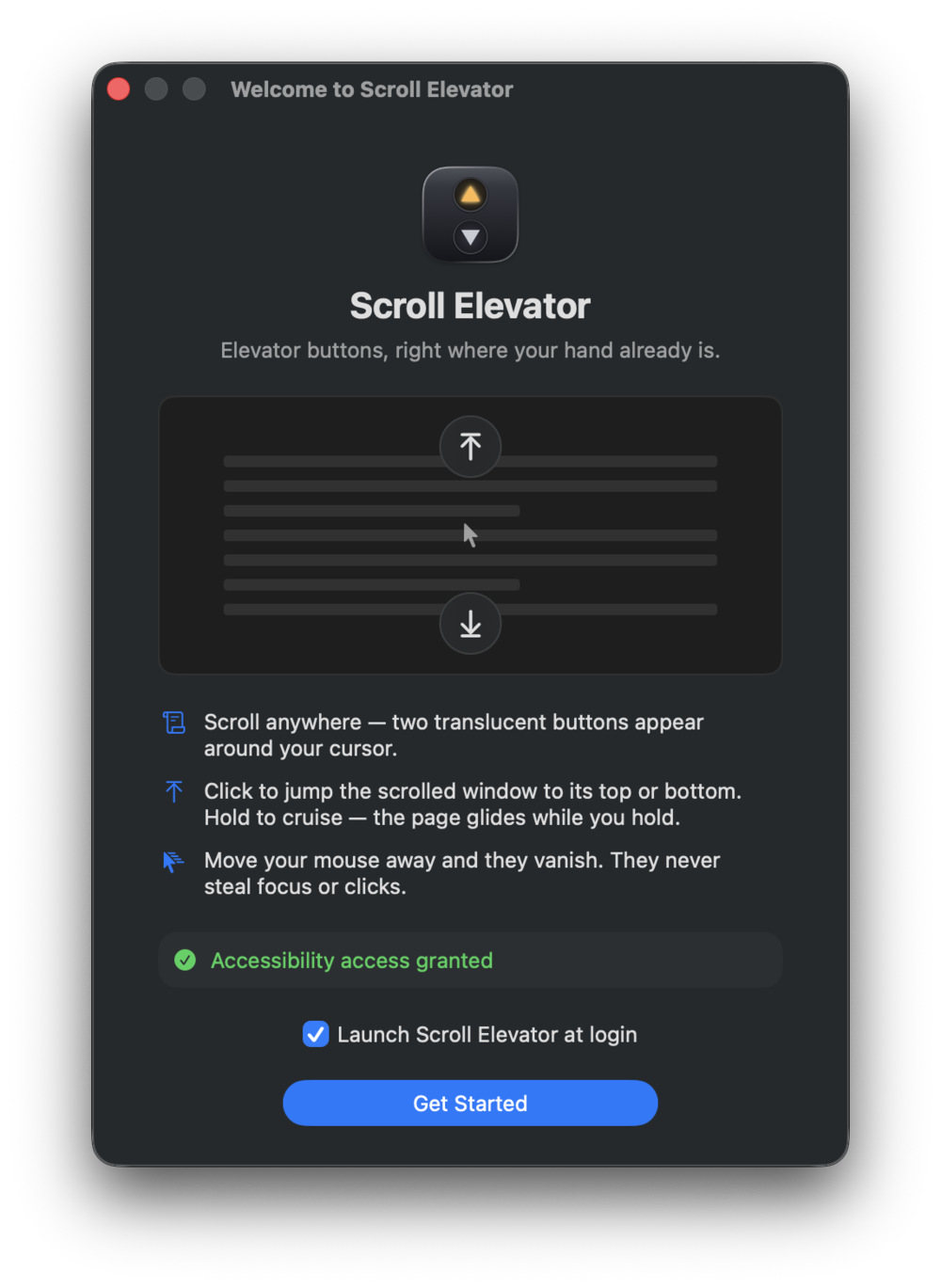
Click to jump straight to the top or bottom. Press and hold to cruise in that direction, accelerating gently until you let go.
It drives the Accessibility scrollbar of the view under your pointer — so background windows scroll without coming forward, no faked keystrokes. Per-app key fallback where needed.
A non-activating, click-through overlay where only the two button circles are live — clicks in the gap pass straight through to what's underneath.
Already at the top? That button fades back, so you always know which way there's still room to go.
Button distance, scroll threshold, idle opacity, an optional modifier gate, auto-hide timing, and per-app rules — including an Ignore list.
Buy on Gumroad, unzip, and drag Scroll Elevator to Applications. It's signed & notarized, so it opens with a normal double-click — no scary Gatekeeper warning.
A first-run window walks you through one permission: Accessibility. It's what lets the app move the scrollbar of whatever you're reading. That's the only access it asks for.
That's it. Scroll any long page and the buttons appear. It lives quietly in the menu bar — toggle it, ignore the front app, or open Settings from there.
An app that watches scroll events and needs Accessibility owes you a straight answer about what it does with that.
It depends on the app, which is the annoying part. In many apps ⌘↑ (Command + Up Arrow) jumps to the top and ⌘↓ to the bottom — but in Finder ⌘↑ opens the enclosing folder instead, and in Terminal you need ⌘Home. If your keyboard has Home/End keys they sometimes work; on most Mac laptops you have to press Fn + Left/Right Arrow. Scroll Elevator skips all of that: scroll, and a jump-to-top button appears right at your cursor.
Because macOS never standardized "go to top/bottom" — each app decides what Home, End, ⌘↑, and ⌘↓ do, and Apple dropped the physical Home/End keys from laptop keyboards years ago (you're left with Fn + Arrow). So the same keypress scrolls in one app, moves the cursor in another, and does nothing in a third. Scroll Elevator gives every app one consistent control at your cursor.
Often ⌘↓ (Command + Down Arrow), or End / Fn + Right Arrow in text fields, or ⌘End in terminals — but it varies by app and many laptops lack the keys. If you'd rather not memorize the exceptions, Scroll Elevator puts a jump-to-bottom button under your cursor, and you can hold it to cruise smoothly all the way down.
To do its job, Scroll Elevator reads scroll events system-wide and moves the scrollbar of other apps. Those abilities require Accessibility access, which App Store sandboxing forbids — so it can't ship there. Selling it direct (via Gumroad) is the only way an app like this can exist, and it lets the app be fully open about what it does.
It lets the app set the scroll position of the view under your cursor and, where no scrollbar is exposed, send a jump keystroke to the front app. That's the entire use. It does not read your screen, log keystrokes, or capture any content.
In most scrollable Mac apps, yes — browsers, Finder, Preview, Mail, code editors, terminals, and more. It prefers the app's own Accessibility scrollbar and falls back to per-app jump keys where one isn't exposed. You can set custom behavior or turn it off per app in Settings → Apps.
It's built to be ignorable. The buttons are translucent at rest, only appear after a real scroll burst, sit in a narrow corridor around the cursor, and pass clicks through the gap between them. Move away and they fade. You can also gate them behind a modifier key, or raise the scroll threshold.
One-time. $4.99, yours to keep, no subscription and no account.
macOS 14 (Sonoma) or later. It's a universal binary, so it runs natively on both Apple Silicon and Intel Macs.
All sales are final — no refunds. If you run into a bug, email me and I'll make it right.
Quit it from the menu bar, then drag Scroll Elevator from Applications to the Trash. To also clear the permission, remove it from System Settings → Privacy & Security → Accessibility. It leaves nothing else behind.
Email martini-doubler7g@icloud.com and I'll get back to you.
$4.99, one time. Signed, notarized, universal — and nothing ever leaves your Mac.
From the developer of ControllerKeys · macOS 14+ · v0.4.0
 Scroll Elevator