Tag your keepers.
Keep your rhythm.
Photo Mechanic controller setup
Tag, zoom, rate and move to the next frame. Download an eight-button starter for Photo Mechanic’s Preview window, then adapt it to your culling pass.
Already have ControllerKeys? Download the profile, then follow the import steps.
Photo Mechanic Preview bindings shown above
- Your familiar shortcutsTag, rate, zoom and advance.
- A profile for each appKeep different workflows separate.
- Your controller, on MacCheck your model in the controller guides.
One frame.
A handful of decisions.
The downloadable starter contains these eight bindings for Photo Mechanic’s Preview window on macOS. Xbox and PlayStation face-button labels are paired below.
| Controller input | Action | Mac shortcut |
|---|---|---|
| D-pad left / right | Previous / next image | ← / → |
| A / cross | Toggle the image’s tag | T |
| B / circle | Toggle zoom | Z |
| Y / triangle | Set a five-star rating | Control + 5 |
| X / square | Clear the star rating | Control + 0 |
| Left / right bumper | Set three / four stars | Control + 3 / 4 |
Xbox / PlayStation face-button labels shown. Use the keyboard commands currently assigned in your Photo Mechanic installation. Camera Bits documents the default macOS shortcuts.
Start in Preview. Open a photo in Photo Mechanic’s Preview window. The Contact Sheet has different meanings for some keys: for example, + and − change zoom in Preview but set tags in the Contact Sheet. This layout uses T to toggle a tag.
Map the pass
you actually make.
This starter uses Camera Bits’ documented shortcuts. It has not yet been tested with a controller in Photo Mechanic; check each action on sample images during your trial. Both sticks are disabled, and no photo app is linked until you choose one.
- Connect your controller.
Follow the guide for your controller, open ControllerKeys and complete Accessibility onboarding.
- Import the starter.
Download the Photo Mechanic profile. In ControllerKeys, click + beside Profiles → Import Profile… and select
photo-mechanic-preview-starter.json. - Link your installed photo app.
Right-click Photo Mechanic Preview Starter, choose Linked Apps… and select your installed Photo Mechanic. Check the table against your keyboard preset, especially Control + number for ratings.
- Try a small selection pass.
Bring Photo Mechanic forward, open a sample image in Preview and confirm the correct profile is active. Check each command, then select a few frames before moving to a larger shoot.
A profile.
Your own buttons.
- Profiles +Open the add menu
- Import Profile…Choose the downloaded JSON
- Linked Apps…Right-click the imported profile
To change a binding, select the profile and open its button mapping. Choose Key, click the shortcut field and press the keyboard shortcut you want. Save, then try it in your editor.
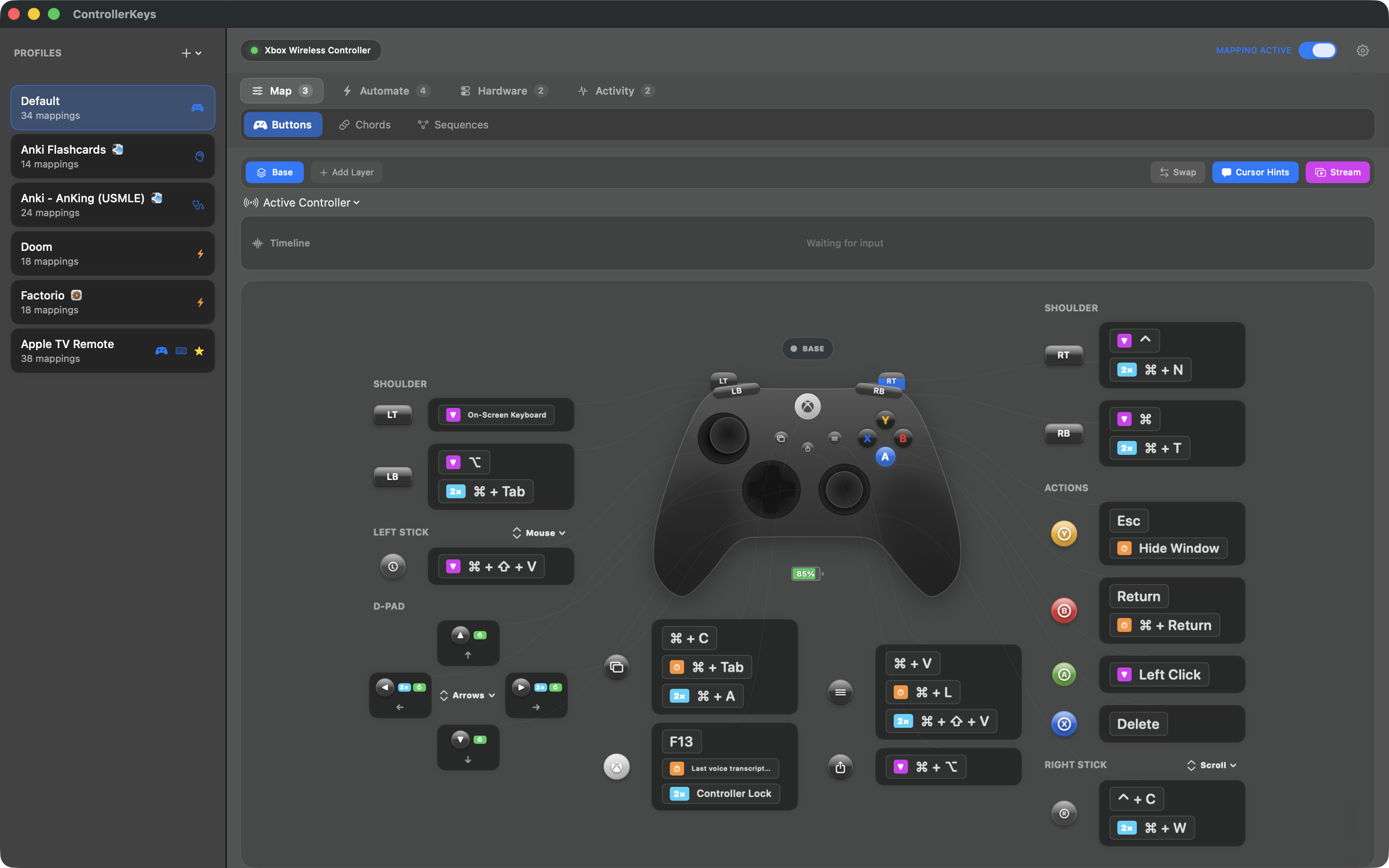
Open the image to inspect the controls.
Wedding selects.
Event shortlists.
Build the layout around repeated selection decisions: inspect the frame, tag a keeper, move on, return when you need a second look.
- Navigate with the D-pad. Keep both directions immediately available.
- Put tagging on a face button. Toggle the current frame’s tag with T.
- Keep inspection close. Map zoom before adding less frequent actions.
- Use explicit rating shortcuts. Control + number distinguishes ratings from color-label choices.
This guide is based on Camera Bits’ documented keyboard actions, checked September 27, 2026. Verify the mappings in your app version and keyboard preset.
Before you connect.
Is there a ready-made Photo Mechanic preset?
Yes. Download Photo Mechanic Preview Starter on this page and import the JSON file using + → Import Profile…. It contains eight keyboard bindings based on Camera Bits’ documentation. Check them in your Photo Mechanic version and keyboard preset; a full controller-and-editor test is still pending.
Does ControllerKeys need a Photo Mechanic plug-in?
ControllerKeys sends macOS keyboard shortcuts to the active app. This recipe uses Photo Mechanic’s own keyboard commands and does not require a Photo Mechanic plug-in.
Why do number keys sometimes change color labels?
Photo Mechanic’s number-key behavior depends on its settings. This recipe uses the explicit Control + number star-rating shortcuts. If you have customized the keyboard preset, use the commands assigned in your installation.
Can I use the same layout in Lightroom Classic?
Keep separate profiles because the applications use different commands. Lightroom Classic has an existing community profile; follow the Lightroom Classic setup guide.
Try your next cull
with a controller.
Use the 14-day trial to try your controller and editing workflow. Keep ControllerKeys for a one-time $19.99 purchase.