Pick. Rate. Next.
In Lightroom.
Lightroom Classic controller setup
Put pick, reject, ratings and navigation on your controller. Start with the existing Lightroom Classic Culling community profile, then make the layout your own.
Already have ControllerKeys? Download the profile, then follow the import steps.
Lightroom Classic bindings shown above
- Your familiar shortcutsFlag, rate, zoom and advance.
- A profile for each appKeep different workflows separate.
- Your controller, on MacCheck your model in the controller guides.
Pick. Rate. Next.
The Lightroom Classic Culling profile already maps the core review actions. The table shows its default bindings; Xbox and PlayStation face-button labels are paired below.
| Controller input | Action | Mac shortcut |
|---|---|---|
| A / cross | Pick and advance | Shift + P |
| B / circle | Reject and advance | Shift + X |
| X / square | Clear the pick/reject flag | U |
| Y / triangle | Five stars and advance | Shift + 5 |
| Left / right bumper | Three / four stars and advance | Shift + 3 / 4 |
| D-pad left / right | Previous / next image | ← / → |
| Left trigger | Toggle zoom | Z |
| Right trigger | Open Loupe view | E |
| View / Create / Share* | Undo | ⌘ + Z |
*The secondary menu-button label varies by controller. Match the button shown in ControllerKeys. Extra profile bindings include Grid, Compare and Survey views, rotation and export. Inspect the community profile.
Lightroom Classic, Library module. These mappings target the English macOS shortcuts in Lightroom Classic. Lightroom’s cloud-based desktop app has a different shortcut set. Keyboard language, focus and shortcut settings can also change what a key does.
A familiar review loop.
New buttons.
Start in Library with a few sample photos and one active selection. Test each action before starting a client shoot.
- Connect and complete onboarding.
Pair your controller with your Mac, open ControllerKeys and grant the requested Accessibility permission.
- Import Lightroom Classic Culling.
Download the Lightroom profile. In ControllerKeys, click + beside Profiles, choose Import Profile… and select
lightroom-classic-culling.json. You can also find Lightroom Classic Culling through Import Community Profile…. - Check the linked app.
Right-click the imported profile, choose Linked Apps… and select your installed Lightroom Classic. Bring Lightroom Classic forward and confirm the profile becomes active.
- Test your first picks.
In Library, use A/cross to pick and advance, B/circle to reject and advance, and the D-pad to revisit a frame. Try zoom and ratings, then adjust the bindings to suit you.
A profile.
Your own buttons.
- Profiles +Open the add menu
- Import Profile…Choose the downloaded JSON
- Linked Apps…Right-click the imported profile
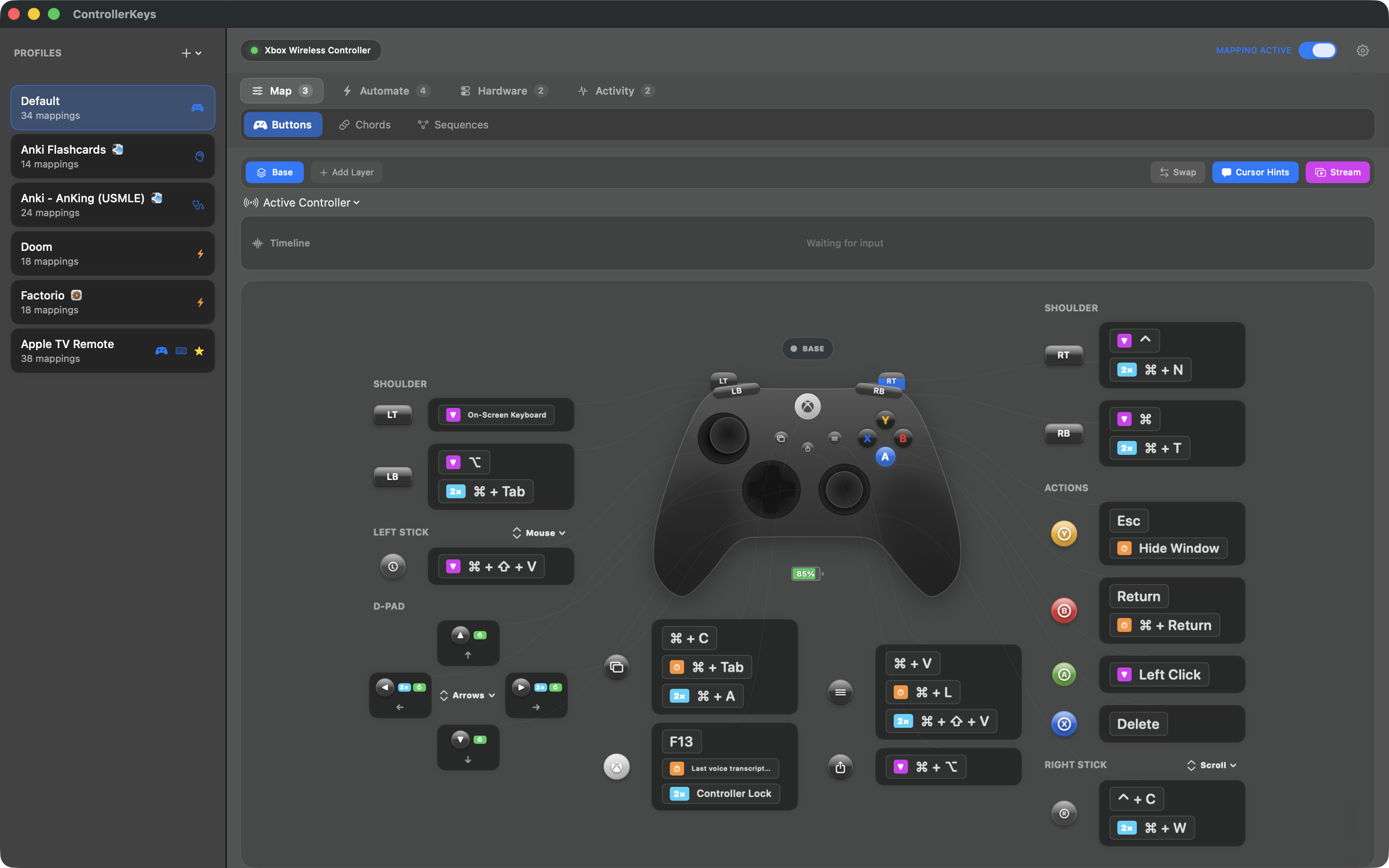
To change a binding, select the profile and open its button mapping. Choose Key, click the shortcut field and press the keyboard shortcut you want. Save, then try it in your editor.
Open the image to inspect the controls.
A deliberate
first pass.
Use flags for your first selection, then ratings to distinguish the strongest frames. The profile puts both under your fingers and keeps undo nearby.
- Pick without reaching. Send pick-and-advance from a face button.
- Revisit the previous image. D-pad navigation stays available.
- Check the details. Use the triggers for zoom and Loupe view.
- Customize your own copy. Change the buttons and linked app after importing.
Shortcut reference: Adobe’s Lightroom Classic keyboard shortcuts, checked September 27, 2026.
Before you connect.
Does this work with Lightroom or Lightroom Classic?
This guide and profile target Lightroom Classic on macOS. The cloud-based Lightroom desktop app uses different shortcuts; verify and remap its commands separately.
Why does a flag also advance to the next photo?
The profile sends Shift + P or Shift + X, Lightroom Classic’s pick/reject-and-advance shortcuts. It also includes double-tap variants that send P or X without Shift. If you prefer separate navigation, edit the mappings and check Lightroom’s Auto Advance settings.
What if a button sends the wrong action?
First try its listed shortcut on your Mac keyboard in the Library module, with a photo selected and no text field focused. Check the active ControllerKeys profile, keyboard language and app shortcut settings. Remap to the shortcut that works in your installation.
Does a reject button delete the photo?
The profile’s B/circle mapping sends Shift + X to mark a photo rejected and advance. Deleting photos is a separate Lightroom action; that action is not assigned to this button.
Try your next cull
with a controller.
Use the 14-day trial to try your controller and editing workflow. Keep ControllerKeys for a one-time $19.99 purchase.