Scenes. Mute. Replay.
No Stream Deck needed.
Control OBS Studio with the controller you already own
Use OBS WebSocket to switch scenes, mute your mic, start and stop recording and save replay clips from a game controller, plus a button overlay your viewers can see.
Profiles on this page: OBS Live Streaming.
OBS Live Streaming bindings shown above
- Direct OBS controlRequests over OBS WebSocket.
- Scenes on the D-padGaming, chatting, BRB, starting soon.
- Stream overlayShow your button presses on stream.
OBS Studio.
Scenes on the D-pad.
Every button sends an OBS WebSocket request directly, so the actions work even when OBS isn’t the front app. Chords cover an emergency BRB and a confirmed stream stop.
| Controller input | Action | Sends |
|---|---|---|
| A / cross | Mute / Unmute Mic | ToggleInputMute |
| B / circle | Mute / Unmute Desktop Audio | ToggleInputMute |
| X / square | Studio Mode Transition | TriggerStudioModeTransition |
| Y / triangle | Toggle Virtual Camera | ToggleVirtualCam |
| Left bumper (LB / L1) | Toggle Recording | ToggleRecord |
| Right bumper (RB / R1) | Save Replay Clip | SaveReplayBuffer |
| Left trigger (LT / L2) | Start Stream | StartStream |
| Right trigger (RT / R2) | Stop Stream | StopStream |
| D-pad up | Scene: Gaming | SetCurrentProgramScene |
| D-pad down | Scene: Just Chatting | SetCurrentProgramScene |
| D-pad left | Scene: BRB | SetCurrentProgramScene |
| D-pad right | Scene: Starting Soon | SetCurrentProgramScene |
| Menu / Options | Toggle Studio Mode | ToggleStudioMode |
| View / Create | Toggle Stream | ToggleStream |
| Share | Scene: Ending | SetCurrentProgramScene |
| Left stick click | Volume Down | Volume Down key |
| Right stick click | Volume Up | Volume Up key |
6 button chords included
- LB + RB Emergency BRB (LB+RB)
- LT + RT Confirm Stop Stream (LT+RT)
- ☰ + ↑ Preview: Gaming (Studio Mode)
- ☰ + ↓ Preview: Just Chatting (Studio Mode)
- ☰ + ← Preview: BRB (Studio Mode)
- ☰ + → Preview: Starting Soon (Studio Mode)
Labels vary by controller; match the button shown in ControllerKeys. Download OBS Live Streaming profile · Inspect it on GitHub.
Match your scene and input names. The profile uses scene names such as Gaming and BRB and audio inputs named Mic/Aux and Desktop Audio. Rename yours to match, or edit each action’s request data.
Show your inputs
on stream.
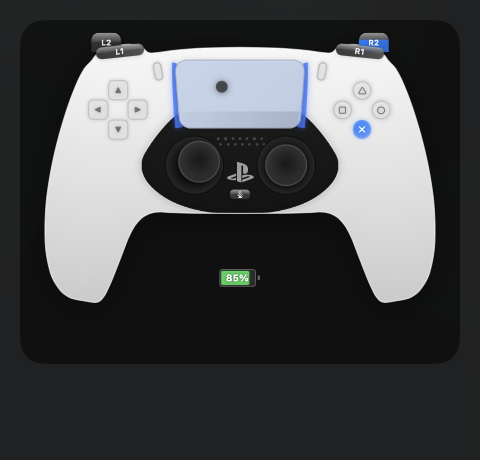
The Stream Overlay is a floating window showing button presses as they happen. Add it to OBS as a window capture for tutorials, speedruns or controller-only challenges.
Import it.
Make it yours.
Turn on OBS WebSocket first: in OBS Studio, open Tools → WebSocket Server Settings, enable the server and note the port (4455 by default).
- Connect and complete onboarding.
Pair your controller with your Mac, open ControllerKeys and grant the requested Accessibility permission.
- Import a profile.
Download: OBS Live Streaming
obs-live-streaming.json.In ControllerKeys, click + beside Profiles, choose Import Profile… and select the file. The same layouts are also available through Import Community Profile….
- Check the linked app.
Right-click the imported profile, choose Linked Apps… and confirm your installed app is selected. Bring that app forward and the profile switches automatically.
- Test, then remap.
In OBS, test mute and a scene switch while not live. If authentication is on, open each OBS action and enter the password in its Password (optional) field. To change a binding, open it, choose Key and press the shortcut you want.
Using a different app?
Tell me.
ControllerKeys is made by Kevin Tang, an indie developer. Many of these profiles started as a single email from someone describing their setup. If your app or workflow isn’t here yet, email me what you’d like to control or use Send Feedback in the app’s settings.
Before you connect.
Do I need a Stream Deck?
No. Any supported controller can send the same OBS requests, and chords, holds and double-taps give you more actions than there are buttons.
Does OBS have to be the front app?
No. OBS WebSocket requests go straight to OBS, so you can stay in your game or browser.
What if OBS uses a WebSocket password?
Each OBS action has an optional password field. Enter the password from OBS’s WebSocket Server Settings.
Can it trigger other tools?
Yes. Buttons can also send HTTP webhooks, run macros or press keyboard shortcuts, for example for chat tools or lighting.
Try your next stream
with a controller.
Use the 14-day trial to try your controller with your own projects. Keep ControllerKeys for a one-time $19.99 purchase.