Brush. Erase. Undo.
In your other hand.
A shortcut remote for painting, 3D and design
Keep your pen hand on the tablet and your shortcuts in the other. Import a profile for Photoshop painting, Blender or Figma, or map any controller (including the tiny 8BitDo Micro) to your own tools.
Profiles on this page: Photoshop painting · Blender · Figma.
Photoshop painting bindings shown above
- Hold modifiersOption, Shift and Command on triggers.
- Brush size on the D-padSmaller, larger, harder, softer.
- One-handed optionsUse a full controller or an 8BitDo Micro.
The 8BitDo Micro
as a shortcut pad.
The 8BitDo Micro fits in one hand and works with ControllerKeys like a full controller. Map its buttons to brush, eraser, undo and zoom, then add chords and hold actions for more. Any controller ControllerKeys supports works the same way.
See the 8BitDo Micro in ControllerKeys · Connect an 8BitDo controller
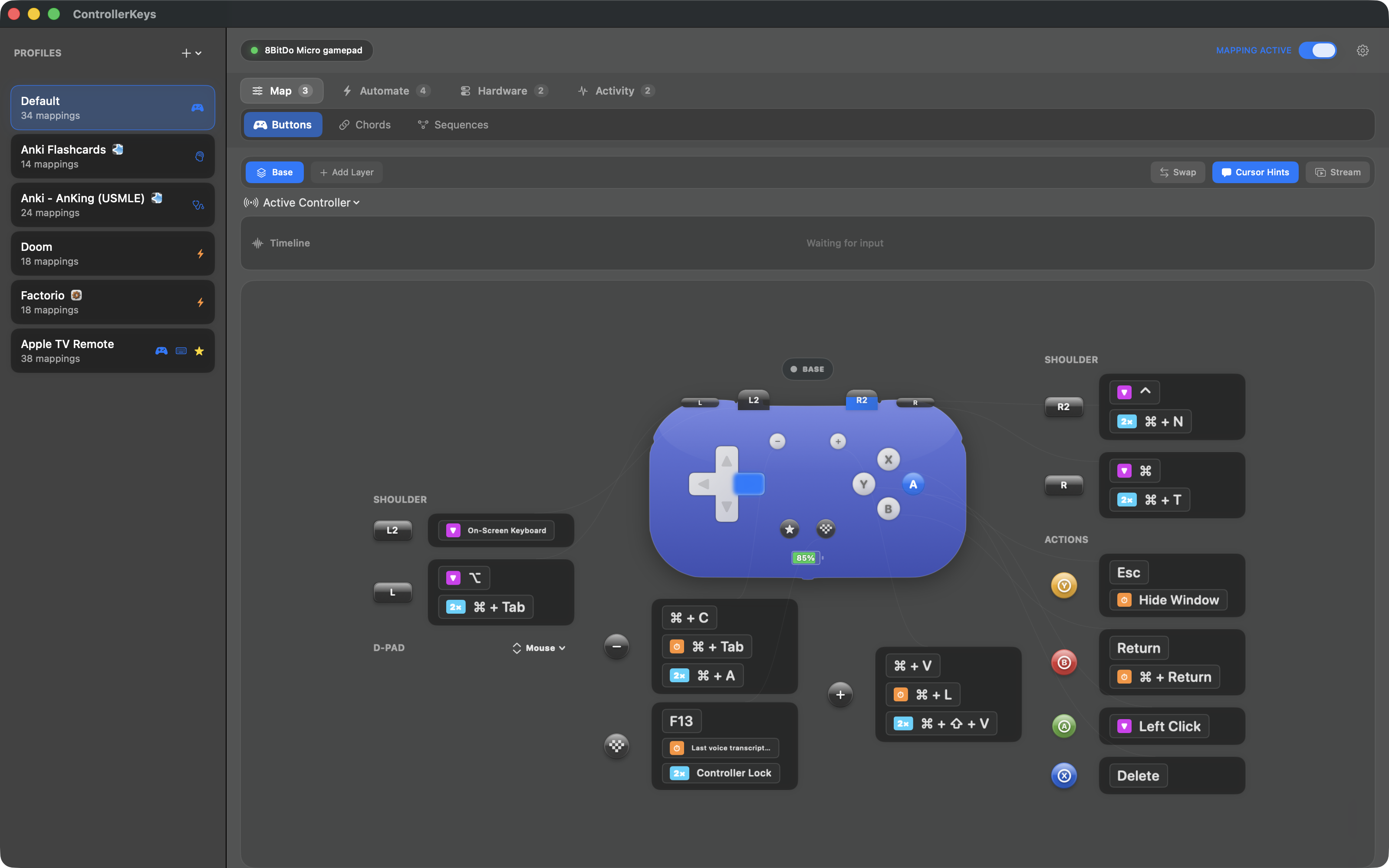
Photoshop.
Paint without reaching.
Brush, eraser, eyedropper and color swap on the face buttons. Hold the triggers for Option and Shift, and size your brush on the D-pad.
| Controller input | Action | Mac shortcut |
|---|---|---|
| A / cross | Brush | B |
| B / circle | Eraser | E |
| X / square | Swap FG/BG Colors | X |
| Y / triangle | Eyedropper | I |
| Left bumper (LB / L1) | Undo | ⌘ Z |
| Right bumper (RB / R1) | Redo | ⇧⌘ Z |
| Left trigger (LT / L2) | HOLD: Option (Eyedropper) | Hold ⌥ |
| Right trigger (RT / R2) | HOLD: Shift (Straight Lines) | Hold ⇧ |
| D-pad up | Harder Brush | ⇧ ] |
| D-pad down | Softer Brush | ⇧ [ |
| D-pad left | Brush Smaller | [ |
| D-pad right | Brush Larger | ] |
| Menu / Options | New Layer | ⇧⌘ N |
| View / Create | Deselect | ⌘ D |
| Share | Toggle Panels | Tab |
| Left stick click | Fit to Screen | ⌘ 0 |
| Right stick click | Reset FG/BG to B&W | D |
4 button chords included
- LB + RB Stamp Visible (Cmd+Opt+Shift+E)
- LT + LB Step Back History (Cmd+Opt+Z)
- RT + A Free Transform (Cmd+T)
- LT + A Duplicate Layer (Cmd+J)
Labels vary by controller; match the button shown in ControllerKeys. Download Photoshop painting profile · Inspect it on GitHub.
Blender.
Grab, rotate, scale.
The core transform keys on the face buttons, standard views on the D-pad and a held Shift on the left trigger.
| Controller input | Action | Mac shortcut |
|---|---|---|
| A / cross | Grab / Move | G |
| B / circle | Rotate | R |
| X / square | Scale | S |
| Y / triangle | ExtrudeHold: Add Menu ⇧ A | E |
| Left bumper (LB / L1) | Undo | ⌘ Z |
| Right bumper (RB / R1) | Redo | ⇧⌘ Z |
| Left trigger (LT / L2) | HOLD: Shift | Hold ⇧ |
| Right trigger (RT / R2) | DeleteHold: Search Commands F3 | X |
| D-pad up | Top View | Numpad 7 |
| D-pad down | Front View | Numpad 1 |
| D-pad left | Side View | Numpad 3 |
| D-pad right | Camera View | Numpad 0 |
| Menu / Options | Toggle Edit Mode | Tab |
| View / Create | Shading Menu | Z |
| Share | Hide SelectedHold: Unhide All ⌥ H | H |
| Left stick click | Toggle Select All | A |
| Right stick click | Focus Selected | Numpad . |
2 button chords included
- LT + A Duplicate (Shift+D)
- LB + RB Apply Transform (Ctrl+A)
Labels vary by controller; match the button shown in ControllerKeys. Download Blender profile · Inspect it on GitHub.
Numpad views. The D-pad sends numpad keys for top, front, side and camera views. On a Mac keyboard without a numpad, enable Emulate Numpad in Blender’s Input preferences or remap those buttons.
Figma.
Tools on tap.
Select, frame, shapes and text on the face buttons, with Shift and Option held on the triggers for constraints and duplication. It is also linked to Sketch.
| Controller input | Action | Mac shortcut |
|---|---|---|
| A / cross | Select / Move | V |
| B / circle | Frame | F |
| X / square | RectangleDouble-tap: Ellipse O | R |
| Y / triangle | Text | T |
| Left bumper (LB / L1) | Undo | ⌘ Z |
| Right bumper (RB / R1) | Redo | ⇧⌘ Z |
| Left trigger (LT / L2) | HOLD: Shift (Constrain) | Hold ⇧ |
| Right trigger (RT / R2) | HOLD: Option (Duplicate / Spacing) | Hold ⌥ |
| D-pad up | Bring Forward | ⌘ ] |
| D-pad down | Send Backward | ⌘ [ |
| D-pad left | Zoom Out | ⌘ - |
| D-pad right | Zoom In | ⌘ = |
| Menu / Options | Quick Actions | ⌘ / |
| View / Create | Zoom to Fit | ⇧ 1 |
| Share | Duplicate | ⌘ D |
| Left stick click | Zoom to 100% | ⌘ 0 |
| Right stick click | Zoom to Selection | ⇧ 2 |
1 button chords included
- LB + RB Group (Cmd+G)
Labels vary by controller; match the button shown in ControllerKeys. Download Figma profile · Inspect it on GitHub.
Import it.
Make it yours.
Open a test canvas or scene. Try each tool and modifier before a long session.
- Connect and complete onboarding.
Pair your controller with your Mac, open ControllerKeys and grant the requested Accessibility permission.
- Import a profile.
Download: Photoshop painting
photoshop-painting.json· Blenderblender.json· Figmafigma.json.In ControllerKeys, click + beside Profiles, choose Import Profile… and select the file. The same layouts are also available through Import Community Profile….
- Check the linked app.
Right-click the imported profile, choose Linked Apps… and confirm your installed app is selected. Bring that app forward and the profile switches automatically.
- Test, then remap.
Switch between brush and eraser, change size with the D-pad and try an undo. To change a binding, open it, choose Key and press the shortcut you want.
Using a different app?
Tell me.
ControllerKeys is made by Kevin Tang, an indie developer. Many of these profiles started as a single email from someone describing their setup. If your app or workflow isn’t here yet, email me what you’d like to control or use Send Feedback in the app’s settings.
Before you connect.
Does this work with Clip Studio Paint, Procreate Dreams or Affinity?
Any Mac app with keyboard shortcuts works. Start from the Photoshop profile, link it to your app and remap the buttons to that app’s shortcuts.
Can a button act like holding a modifier key?
Yes. Hold-modifier mappings press Option, Shift or Command for as long as you hold the button, which suits eyedropper, straight lines and constrained transforms.
Will it interfere with my pen tablet?
No. ControllerKeys only reads the controller; your tablet and pen work as before.
Can I use the same controller in several apps?
Yes. Link each profile to its app and ControllerKeys switches automatically.
Try your next piece
with a controller.
Use the 14-day trial to try your controller with your own projects. Keep ControllerKeys for a one-time $19.99 purchase.